Ignition
Overview
This document describes connecting WIN-911 2025 R2 (or later) with Ignition version 8.1 or 8.3 to enable remote alarm notification from Ignition alarm conditions. The guide assumes an Ignition implementation in one of these 2 version is already running. The integration uses WIN-911 to monitor the contents of one or more Ignition Alarm Journal databases. The configuration and processing of an Ignition alarm condition into a WIN-911 notification works like this:
Install WIN-911 with the Ignition module enabled.
An Ignition Alarm Journal is connected to WIN-911’s SQL Server database and mapped as an Alarm Source in WIN-911 Workspace.
A Subscription filter is configured against the alarm source, e.g. all alarms with Critical severity, or all alarms where the tag path contains the text Building1.
Contacts are created to define the people who receive notifications. Contact methods include Connections for email addresses, phone numbers (for voice or SMS), and SmartSights Mobile accounts.
A Notification Policy is created to define who receives specific alarms, and in what order. Policies can be a callout list, e.g. start at the top of this list of 5 people, give each person 10 minutes to acknowledge the alarm, and repeat the process endlessly until someone acknowledges or the alarm condition is cleared.
A Gateway is defined to process the notifications at runtime. A gateway can be an email server, SMS modem/cloud provider, a voice modem/SIP provider, or a SmartSights Mobile Gateway. Notification-specific portions of this guide use SmartSights Mobile as examples.
Step-by-Step Configuration (Ignition Screenshots in 8.1)
Step 1: WIN-911 Installation
The first step is to install the WIN-911 2025 R2 product (or newer) with the Ignition Source module enabled.
After installation, a database named [WIN-911 host].Default.Ignition will be created in the SQL Server Instance specified during the installation.

Step 2: SQL Server Configuration
WIN-911’s SQL Server instance must be edited to allow Ignition to connect an Alarm Journal. Open SQL Server Management Studio and log into the WIN-911 SQL Server instance configured during the installation step:
Ignition only supports SQL Server based authentication, which WIN-911 does not have enabled by default. It can be enabled from the instance properties:
IF the Ignition Gateway that logs the Alarm Journal is on a different network node than this SQL Server instance, remote connections must be allowed:
Define a SQL Server user:
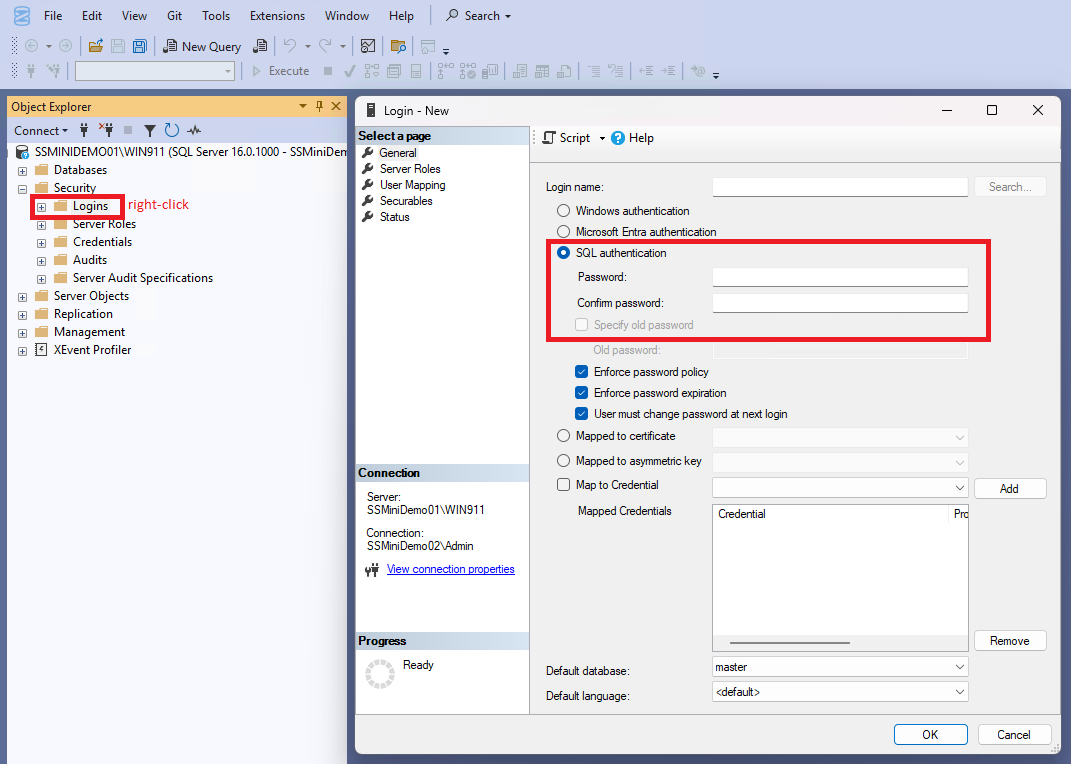
This user must be able to create and drop tables, as well as read and write to those tables.
Restart the SQL Server instance:


Step 3: Create a Database Connection in Ignition
Open the Ignition Gateway configurator in a web browser (hostmachine:8088).
Config 🡪 Databases 🡪 Connections and select Create new Database Connection.
Select Microsoft SQL Server.
In the Main Properties dialog:

Assign a Name.
Set the Connection URL to that of the WIN-911 SQL Server instance configured during the WIN=911 installation step.
Set the Database Name to the WIN-911 Ignition module database.
Set the user and password configured previously in SQL Server configuration.
Verify that Enabled is checked.
Set the Database Name to the WIN-911 Ignition module database.
Scroll to the bottom and click Save changes.
Save/confirm the settings, then verify that the connection status is Valid.

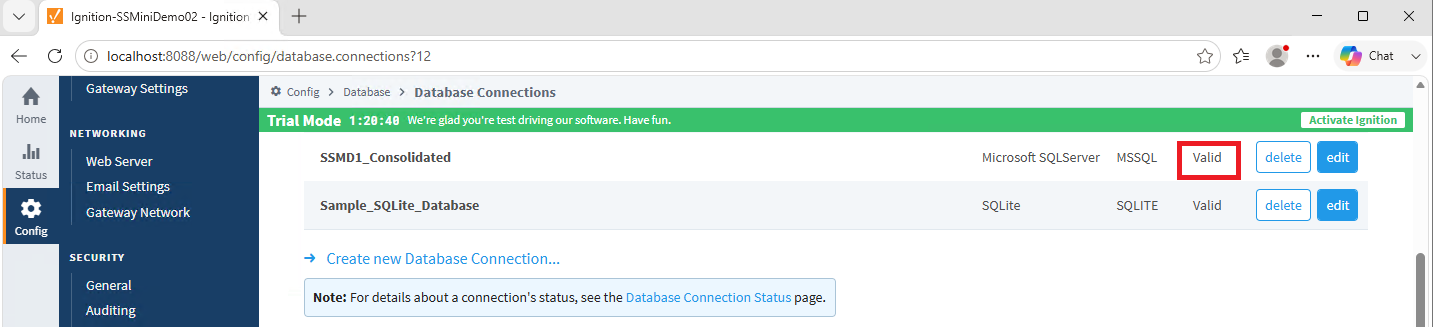
Step 4: Define a new Ignition Alarm Journal using the Database Connection
The alarm journal uses the database connection configured in the previous step as its location to store alarm history.
In the Ignition configurator, open Config 🡪 Alarming 🡪 Journal and create a new Alarm Journal Profile.
In Main settings:

Enter a Name for the Journal.
Assign DataSource to the one created previously in the Database Connection step.
Enable Store and Forward.
In the Events section:
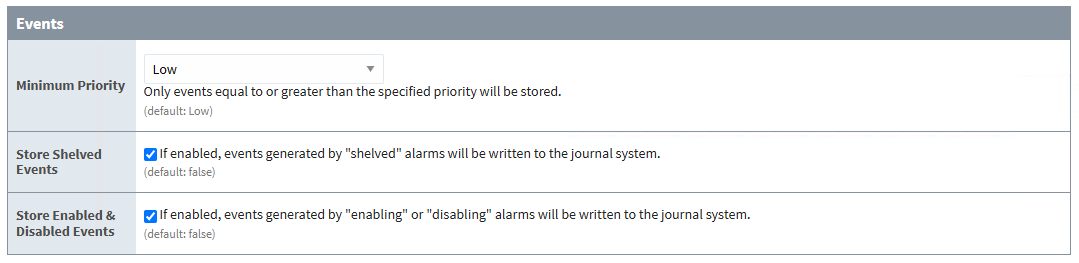
Only alarms that meet these criteria are stored to the journal.
Enable Store Shelved Events and Store Enabled & Disabled Events.
Enable all options in the Event Data section:

This makes all alarm metadata available for alarm subscription filtering in WIN-911.
Review the Data Filters section. These settings also affect which records are logged to the alarm journal. If only specific sources or display paths are required for monitoring at the global level in WIN-911, add the necessary filtering logic here.
Configure the Pruning section. The longer the retention timeframe, the slower the WIN-911 system performs. A 1-month retention is the current recommendation.
Check Show advanced options.
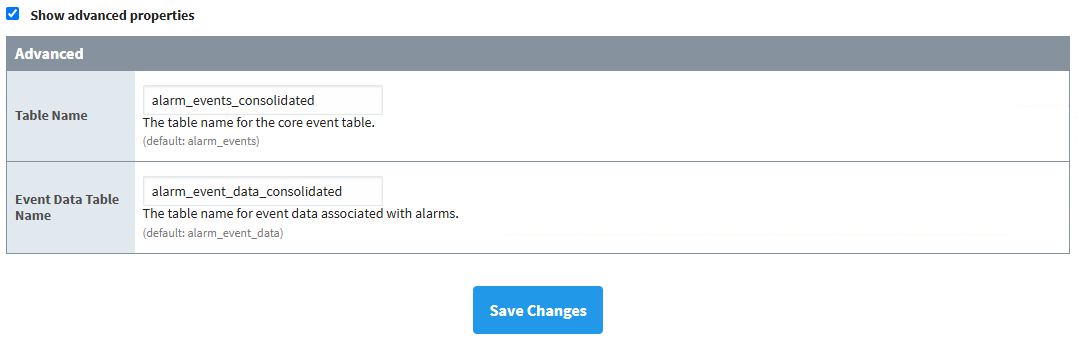
These table names are where alarm history is stored in the database connection. If more than one alarm journal is connected to WIN-911, the names must be unique across journals.
Click Save Changes.
In SQL Server Management Studio, confirm the tables assigned in the journal configuration were created in the WIN-911 Ignition database.

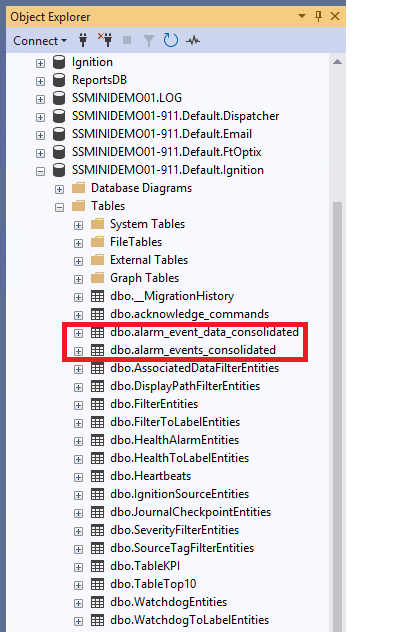
Step 5: Configure the WIN-911 Alarm Source in Workspace
Now that Ignition is logging alarm data to the WIN-911 SQL Server database, the Ignition Alarm source can be configured in WIN-911 Workspace.
Open WIN-911 Workspace 🡪 Alarm Sources 🡪 Ignition.

Assign a Name.
Select the Events table and Events Data table configured previously in the Alarm Journal connection step. If the tables do not automatically populate, then Ignition has not created the tables (revisit the previous sections regarding creating an Alarm Journal),
Define a subscription. A simple wildcard (*) subscription on the Source Tag field is sufficient at this point. This subscription connects all alarms logged to the journal.
Step 6: Configure the Acknowledgement Script
Acknowledgement status is synced between WIN-911and Ignition via a Gateway script in Ignition, and an ack commands table in SQL Server. This allows WIN-911 to manage acknowledgements to Ignition from its client interfaces, e.g. SmartSights Mobile or Control Center. To configure acknowledgement from WIN-911 into the Ignition Gateway:
In Workspace, click Show Script in the Ignition Alarm Source settings

Click Copy script to clipboard.
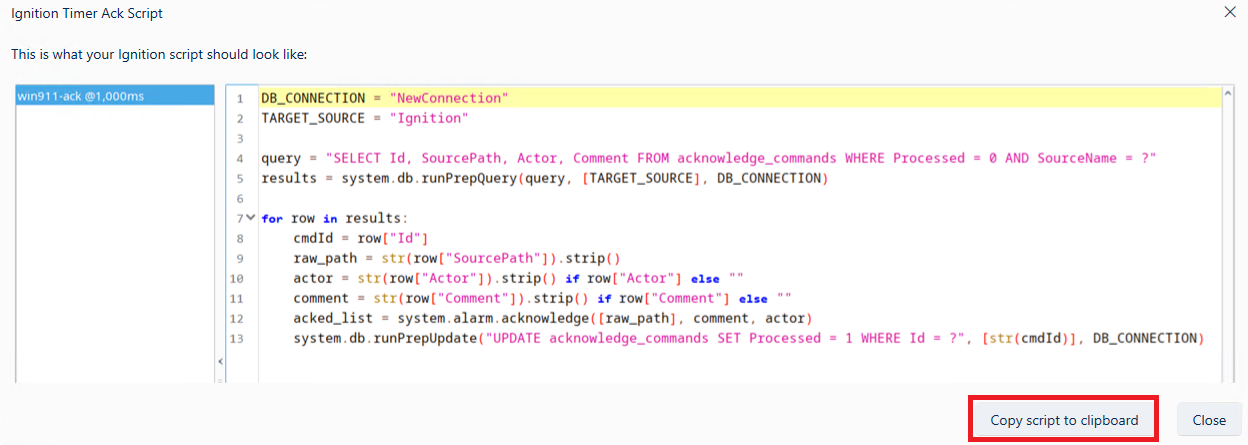
The script defines the database connection named in the Ignition Gateway (see Database Connection) and the Target Source, which is set automatically to the name assigned in Workspace.
The first block of the Python code selects unprocessed alarms (where the processed flag equals 0) from the ack commands table in SQL Server and sets the source name field to a placeholder value passed to the next block.
The second block processes the results and, for each alarm flagged to be acknowledged in the ack commands table, retrieves the alarm's identifying information and runs a command in Ignition to sync the acknowledgment back to the SCADA.
Copy the ack script into Ignition Designer
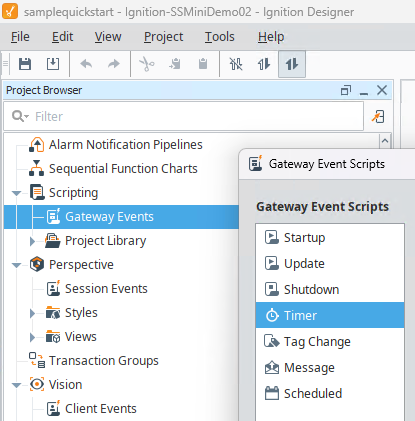
Open Ignition Designer 🡪 Scripting 🡪 Gateway Events 🡪 Timer.
Add a new Timer script.
Name the script clearly enough to identify it later if other scripts exist on the gateway.
Set the Delay Time to 1000ms. This interval is the rate at which acknowledgments are processed when performed from WIN-911.
Change the DB_Connection parameter to the Ignition Database Connection defined in a previous step

Save the application in Ignition Designer. NOTE: if the WIN-911 source name (Ignition here) is changed in the WIN-911 application, it must also be changed in the script.
Generate an alarm from Ignition Designer and attempt to ack it from WIN-911 to test the script:
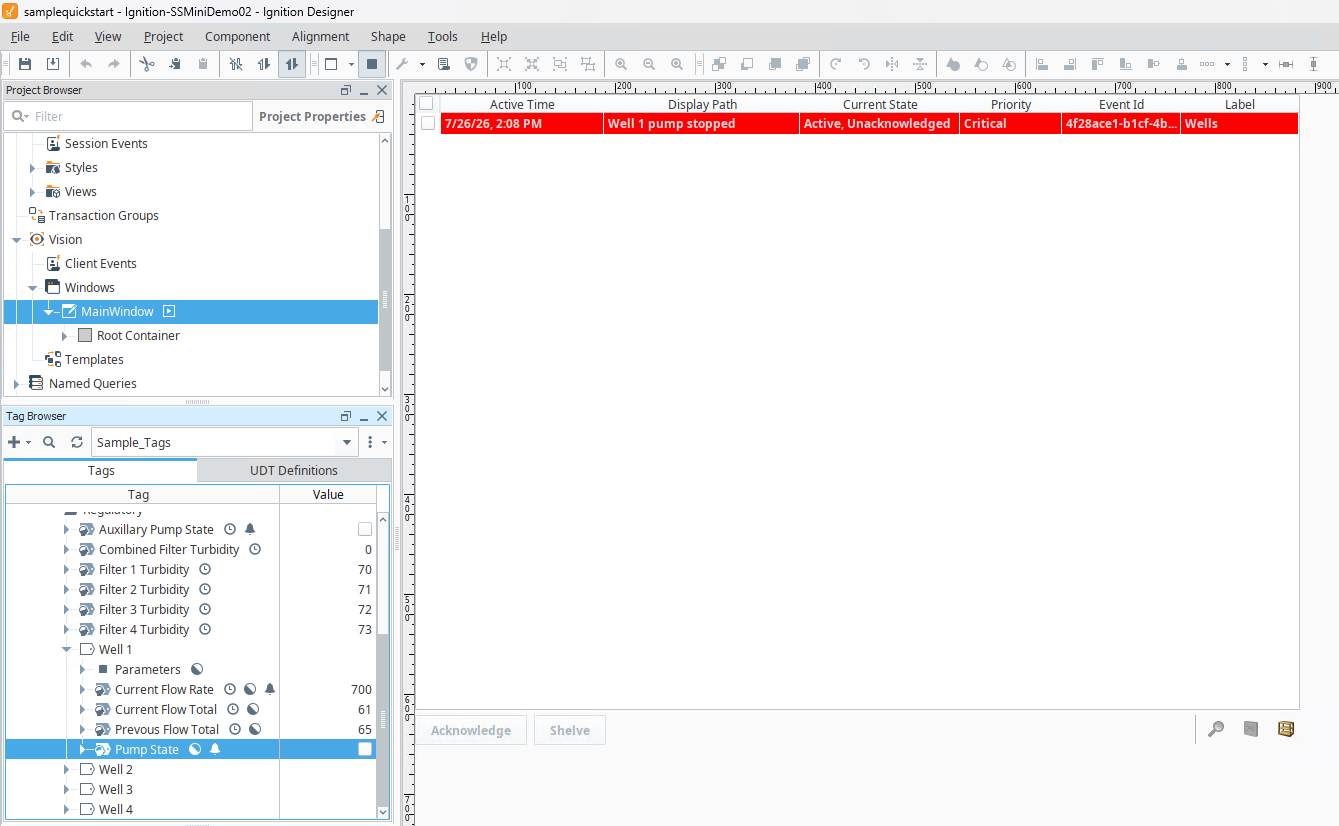
Open SmartSights Control Center, select the alarm, and acknowledge it:

The alarm State icon should change to the active acknowledged state in the Control Center:

The same state change should be reflected in the Ignition HMI:
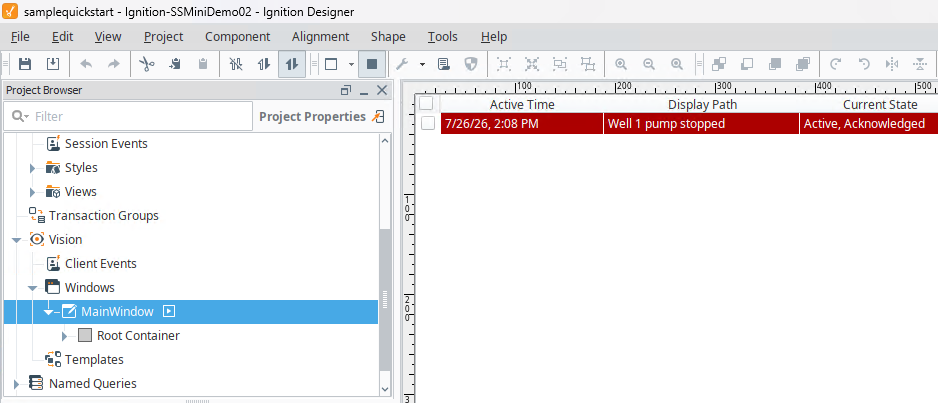
Step 7: Heartbeat, Health Alarm and Watchdog
Additional features of the alarm source include 2 different methods of monitoring the connectivity between Ignition and WIN-911.
The Heartbeat function writes a value that ramps between 0 and 10, to a database table in the WIN-911 SQL Server. This allows the SCADA to monitor that WIN-911 is running. If the heartbeat value stops changing, the WIN-911 system has become unresponsive.
The Watchdog function allows WIN-911 to monitor that the Ignition Gateway is running. A watchdog alarm is a “fake” alarm configured in Ignition that triggers and clears automatically. This allows WIN-911 to differentiate between an Ignition Gateway that is running, but not generating alarms, and one that has stopped running. For example, triggering an alarm off of the gateway system second as a watchdog alarm.
Read the Heartbeat Value from a Named Query
The heartbeat is written to the heartbeats table in SQL Server. If there are multiple Ignition sources, there is an entry for each in the table.
To turn on heartbeat check Enable Hearbeat checkbox under heartbeat on WIN-911 Ignition Source configuration.

The heartbeat can be read from any Ignition object that can execute a query, for example, a Named Query.

Set the Health Alarm Message
The health alarm shows in WIN-911 clients when the connection to the journal database is lost, for example, due to a SQL Server crash, lost network connection, or a firewall change blocking SQL Server JDBC traffic.

To trigger it for testing, disable the Windows account in SSMS that WIN-911 uses to authenticate its connection. Confirm you can still log in using SQL authentication before doing this.
Configure a Watchdog
Open the Watchdog settings from the Ignition Source configurator in Workspace

If the watchdog alarm stops activity for the configured number of seconds, an alarm is raised and sent to any WIN-911 Contacts which have the Status Admin role applied.
WIN-911 Alarm Subscription Filtering
Now that the integration is connected, alarm subscriptions can be configured. With the default wildcard Alarm Subscription in WIN-911, every alarm that passes through the Alarm Journal will be routed to a remote notification. Filtering can be applied on this alarm Journal based on the below criteria. Multple filter conditions can be combined within a subscription using AND/OR operators.
To configure the alarm subscriptions, open WIN-911 Workspace 🡪 Ignition tab 🡪 select the Ignition Source name configured in the previous steps.
Source Tag
The Ignition tag path identifies the alarm. The syntax is:
Provider:Device:/tag:Folder(s)/Tag Name:/alm:Alarm Name
An extra sys: field, when present, indicates the origin Ignition gateway in a multi-site Ignition deployment. A prov: prefix indicates the alarm originated on the local gateway that is logging the journal. Remote gateways and journals, which generate the system name, are covered in Remote alarm journals.
The Source Tag setting filters on this path; for example, filter out only the Boiler tags from a system using a wildcard.
 |
Display Path
The display path is assigned as part of the alarm properties in Ignition. It is the human-readable (or pronounceable, for WIN-911 voice) expression that operators interact with on the HMI. It is less descriptive than the tag path but is easily configurable by the user and roughly equivalent to “description” or “message” in other HMI vendors.
 |
Severity (Ignition Priority)
Ignition calls this property Priority, and it is a text property of the alarm on the tag. Ignition defines Diagnostic, Low, Medium, High, and Critical. These map to WIN-911 as follows:
Ignition Priority | WIN-911 (0–1000) | Journal DB priority |
|---|---|---|
Diagnostic | 0 | 0 |
Low | 250 | 1 |
Medium | 500 | 2 |
High | 750 | 3 |
Critical | 1000 | 4 |
 |
Tag Associated Data
Tag associated data is metadata that can be associated with an alarm, recording static text or dynamically binding any data point available in the Ignition system at runtime. This is the most nuanced of the four filter types.
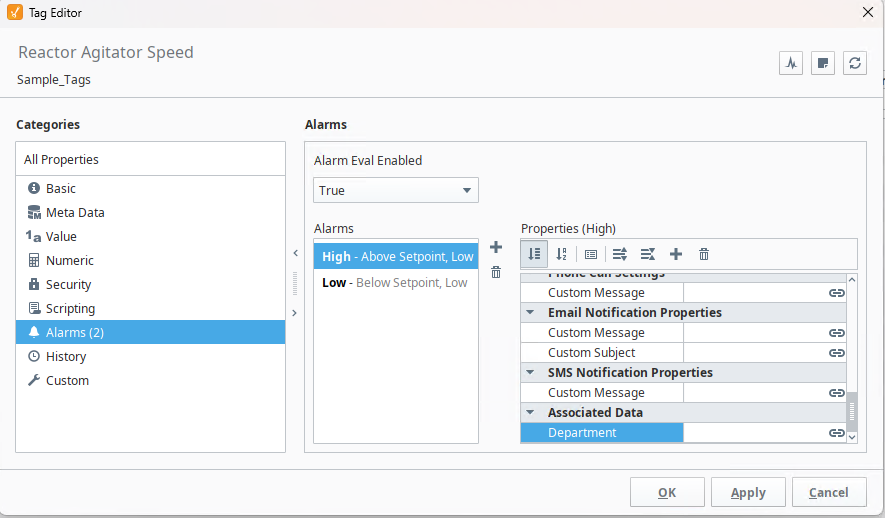 |
Open an alarm configuration in Ignition Designer.
Click the plus (+) button to add associated data.
Give the associated data field a name.
Bind a value to it. in this example, an associated data field called Department is defined and then filtered in the alarm description.
 |
The example above defines an associated data field named Area and sets it to the alarm’s Label property. To capture this alarm condition in WIN-911, set the filter to Associated Data, set the field name to Area, and use an expression that captures the value set on the alarm’s Label property (in this example, the Label property is set to DT in Ignition).
Note, the Associated Data history is logged in the alarm_event_data table associated with the alarm source/alarm journal.
Additional Considerations and Best Practices
Alarm shelving & Disabling
Ignition alarms can be shelved (disabled with a timer to auto-re-enable) or disabled (disabled until manually re-enabled), either via the HMI or by script. Alarms can be disabled at the tag level, or the condition level and WIN-911 follows the current status of the alarm. It will not notify when alarm conditions are triggered while the alarm is shelved or disabled. Note that WIN-911 does not synchronize with alarm behavior if the overarching tag itself is enabled or disabled.
Remote Alarm Journals
Enterprise-level Ignition systems may use a configuration where multiple plant-level gateways feed into a single alarm journal on the enterprise network. WIN-911 supports this architecture, but for acknowledgement this requires any remote tag providers be registered with write access on the Gateway that is logging the consolidated local journal.
Naming & consistency
Keep the WIN-911 source name, the Target Source in the ack script, and the Gateway database-connection name in one documented mapping, so any change is applied consistently across all three.
For multiple monitored systems, give each journal unique table names up front (set in the journal's Advanced section).
Choose descriptive, stable names up front, renaming later forces a coordinated change in both the ack script and the source definition
Subscriptions & alarm scoping
The catch-all wildcard subscription is fine for bring-up, but for production subscriptions scoped by source path, display path, or priority so operators are notified only about the alarms they own. This also reduces WIN-911 polling and dispatch load.
Security
Use a strong, unique SQL password for the WIN-911/Ignition login.
Scope permissions to least privilege: once the journal tables exist, db_owner can typically be reduced to db_datareader + db_datawriter (plus rights for the ack writes). Test in staging first.
Restrict TCP 1433 with firewall rules to only the Gateway and WIN-911 hosts; avoid exposing the SQL instance broadly.
Appendices
Appendix A · Prerequisites
Confirm the following before starting. Check the WIN-911 System Requirements page for the current list of supported Ignition versions.
WIN-911 2025 R2 or newer, installed with the Ignition Alarm Source option. Installation creates the [WIN-911 host].Default.Ignition database in your SQL instance.
Microsoft SQL Server Management Studio (SSMS) for authentication, login, and table verification.
Ignition Gateway running and reachable (default hostmachine:8088).
Ignition Designer Launcher for the acknowledgment Gateway timer script and (optionally) the heartbeat display.
A dedicated SQL login with a strong password and rights to create/drop tables and read/write them in the WIN-911 Ignition database.
Appendix B · Quick Reference
Defaults and the objects this integration touches. Adjust for hardened or multi-machine deployments.
Item | Value / notes |
|---|---|
WIN-911 Ignition database | [WIN-911 host].Default.Ignition |
Journal tables (Ignition-created) | alarm_events, alarm_event_data, AssociatedDataFilterEntities |
Ack command table | acknowledge_commands |
Heartbeat table | heartbeats (one row per Ignition source) |
SQL login | Dedicated login with a strong, unique password; create/drop + read/write on the WIN-911 Ignition DB |
Ignition → SQL auth | SQL Server authentication only (Windows auth not supported by Ignition) |
JDBC / SQL port | 1433 default (some sites use a non-default port) |
Gateway configurator | hostmachine:8088 |
Ack timer interval | 1000 ms recommended starting value |
Journal retention | 1 month recommended (longer retention slows WIN-911) |