Restoring on a different WIN-911 machine
This method would be used to restore the WIN-911 configuration on a different WIN-911 system. Restoring a WIN-911 backup to a different WIN-911 machine may be required if:
You are moving the WIN-911 installation to a new computer.
You are reinstalling WIN-911 on a formatted hard drive.
You are moving the configuration from a development machine to the production machine.
You are copying the configuration from a primary WIN-911 system to the secondary WIN-911 system in a hot-backup environment.
Note
Restoring a backup configuration to a new WIN-911 system is only valid for the same host environment. The same host environment is defined as:
The same version of WIN-911 2021
The same set of WIN-911 Modules
The same version of Microsoft SQL Server.
Open SQL Server 2014 Management Studio found in your Start menu.
After connecting to the appropriate instance of the Microsoft SQL Server Database Engine (‘[COMPUTER NAME]\WIN911’ by default), in Object Explorer, click the server name to expand the server tree.
Expand Databases, and select one of the WIN-911 Module databases.
Right-click the database, point to Tasks, then point to Restore, then click Database. The Restore Database dialog box appears.

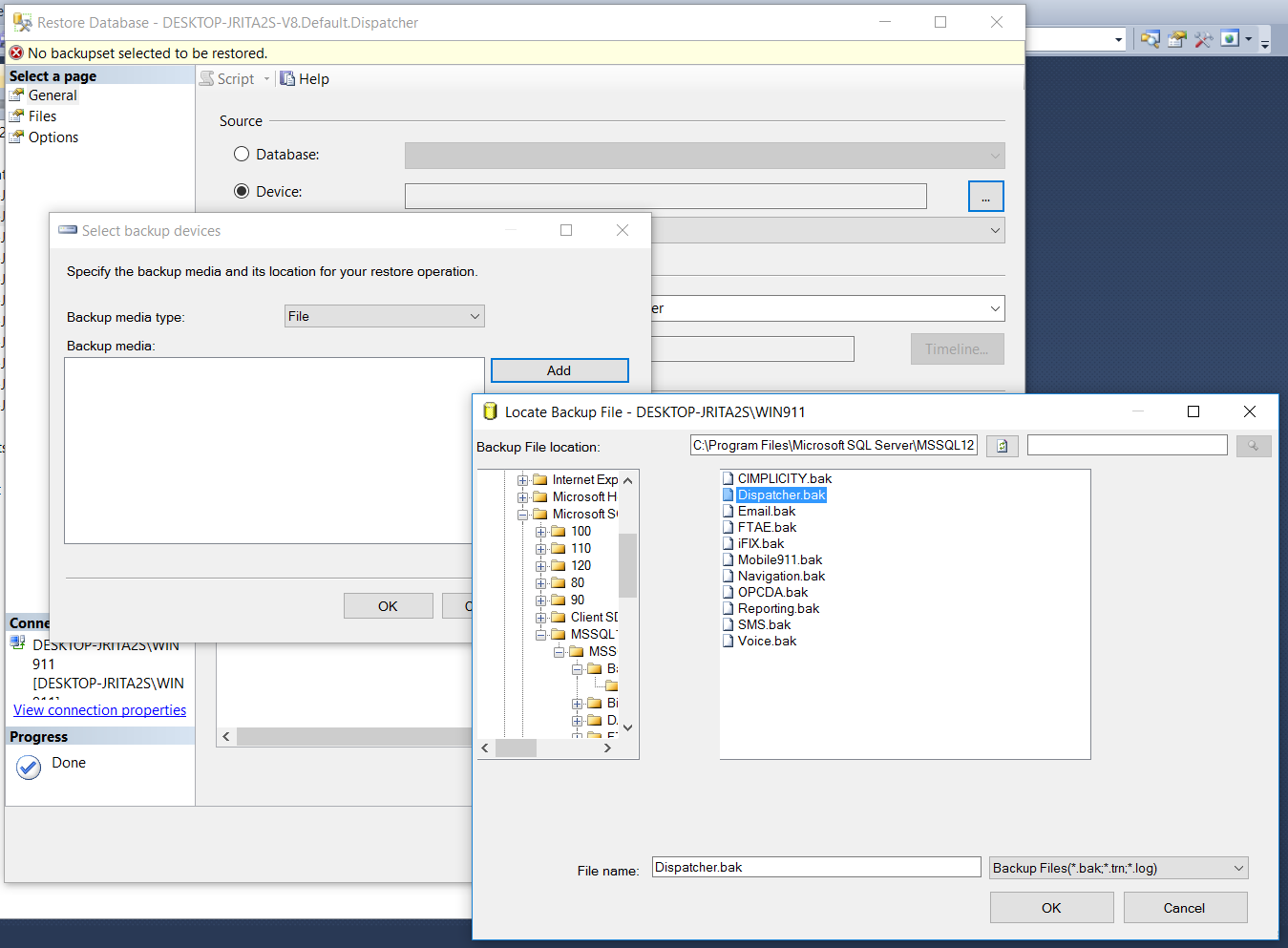
Since the backup is taken from a different server, the destination server will not have the backup history information for the specified database. Select Device to manually specify the backup file to restore. Click the […] button. The Select backup devices dialog box will appear.
Select the backup media type where the database backup resides, File is selected by default. Click the Add button. The Locate Backup File dialog box will appear.
Browse for the specific database’s backup file (.bak) that will be restored. Click OK.
Now you must edit the destination database name to match the current system. WIN-911 uses the computer name inside each module’s database name. In this example, the backup database was taken from a system named STEVE-SURFACE. The backup database will be restored to a new computer named DESKTOP-JRITA2S.
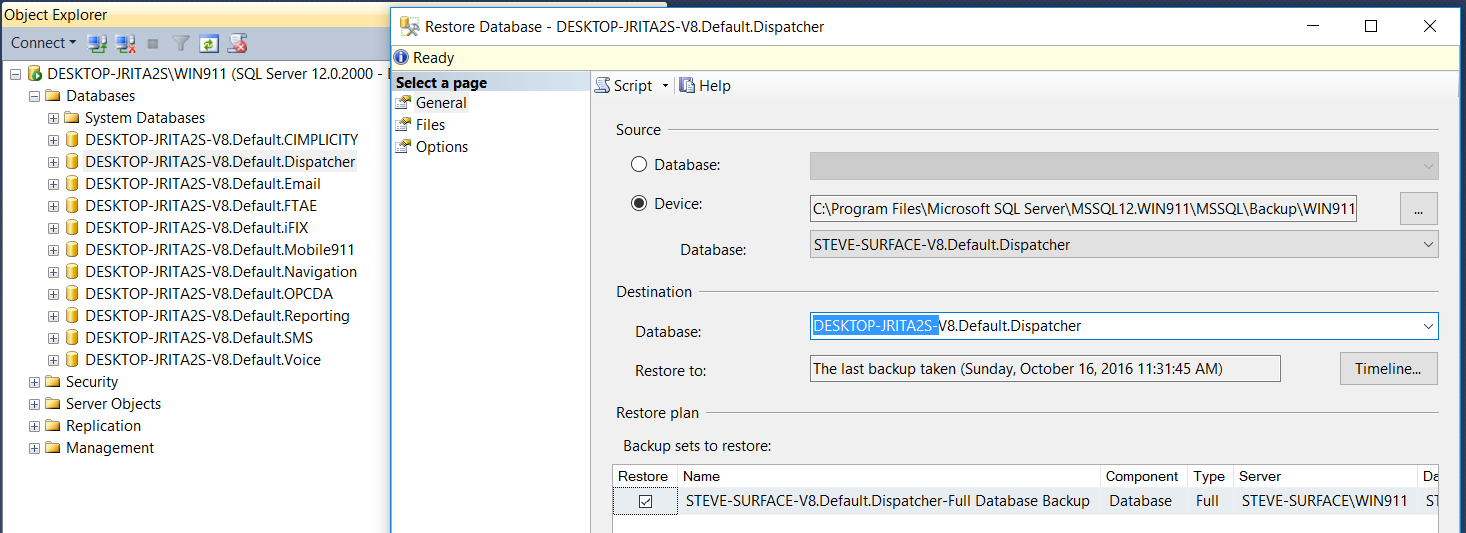
Change the destination database name to match the current system, as shown below.
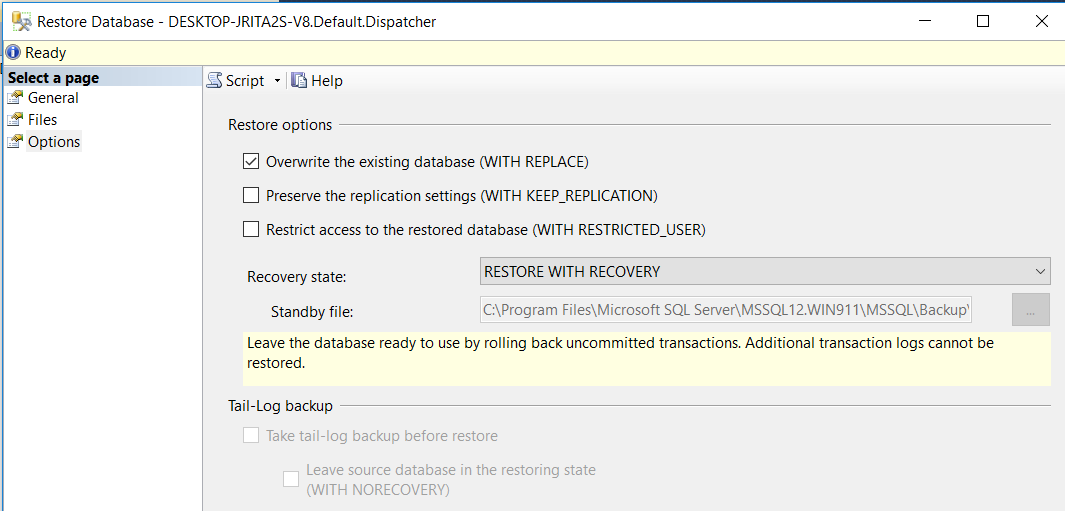
Next, click Options in the Select a page pane. Overwrite the existing database (WITH REPLACE), must be selected. If this option is not checked, an error will appear when attempting to restore the database. Click OK to initiate the restore.
You should receive a message box showing the restore was successful.
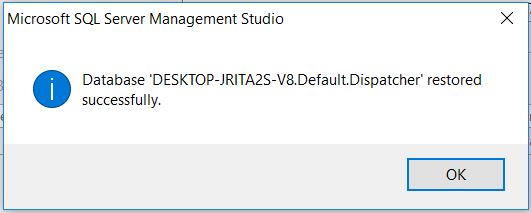
You have now successfully restored the configuration of a single WIN-911 Module. This process must be repeated for all other modules. Once all database backups have been restored, a few configuration changes must be made within the WIN-911 software before you have completed the system restore. Please follow the remaining instructions to complete the restore.
Restart WIN-911 Services
To restart the WIN-911 Runtime Services, open the Windows Service applet and start each of the WIN-911 Services. After you have backed up each module’s database, as well as the WIN-911 log file, you can now restart the WIN-911 Runtime Services. See section – Preparing the Database for Backup, for a complete list of the WIN-911 Runtime Services.