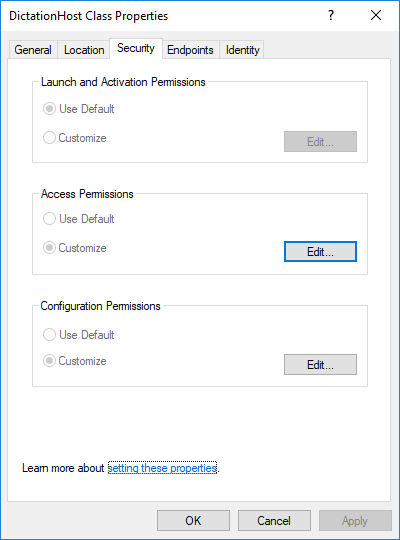
DCOM config security tab grayed out
Issue
DCOM permission settings are grayed out. In other words, they are not editable.
Cause
Account permissions are not configured to allow editing.
Solution
In order to edit DCOM properties, you need to assign permissions to your user account. Follow the steps below. Make sure to backup your registry before making any changes.
Go to “”. Enter “regedit”
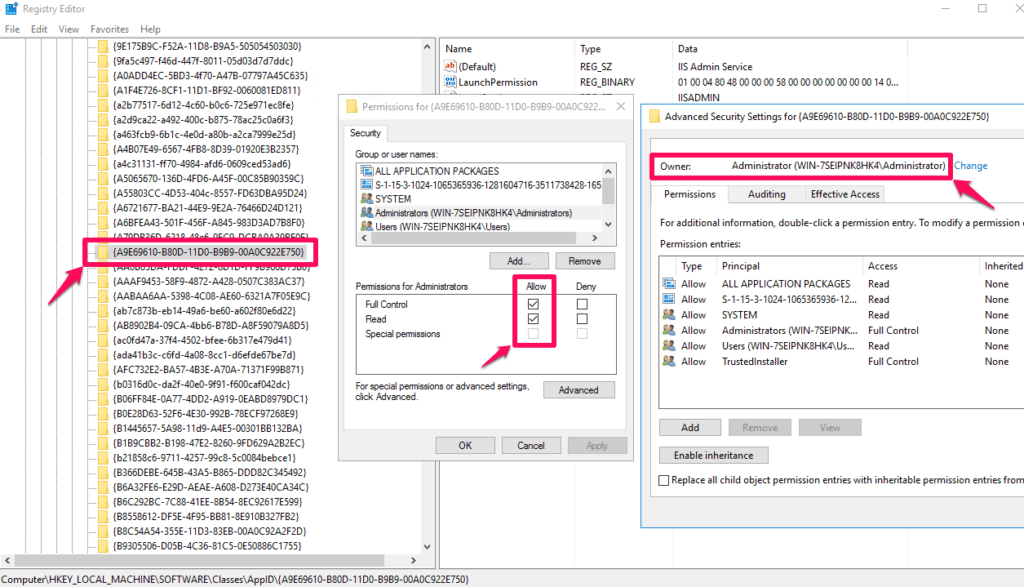
Go to the key that is associated with the DCOM component you want to manage (It is IIS Admin Service in this example): HKEY_LOCAL_MACHINE\SOFTWARE\Classes\AppID\{A9E69610-B80D-11D0-B9B9-00A0C922E750}
on it. Select “”
Click “”
Change the owner to “Administrator” or your user account
Click “”
Select “Full Control” for the “Administrators” group and owner you selected
Go to “”. Search for “services”
Find “COM+ System Application”. Right click on the service, then click “”