iFIX Alarms
Feb 11, 2023 Knowledge
iFIX Configuration Prerequisites
Important
Please review the System Requirements page for supported SCADA versions and other helpful information.
To successfully integrate WIN-911 into your existing iFIX infrastructure, you must configure the iFIX System Configuration Utility (SCU) to start two executables as part of the iFIX startup sequence:
The alarm queue
The WIN-911 iFIX Runtime Source
The queue must be started before the runtime source.
These two applications must be launched and active before WIN-911 may import blocks from iFIX.
They are also required for remote alarm notification.
Follow these instructions to make sure that iFIX launches both apps at startup, and in the proper order.
 |
Note
You may need to include a Start-up Delay for the WIN-911 WPF Host Runtime app. If so, you can use the Command Line /d.
 |
WIN-911 iFIX Configuration
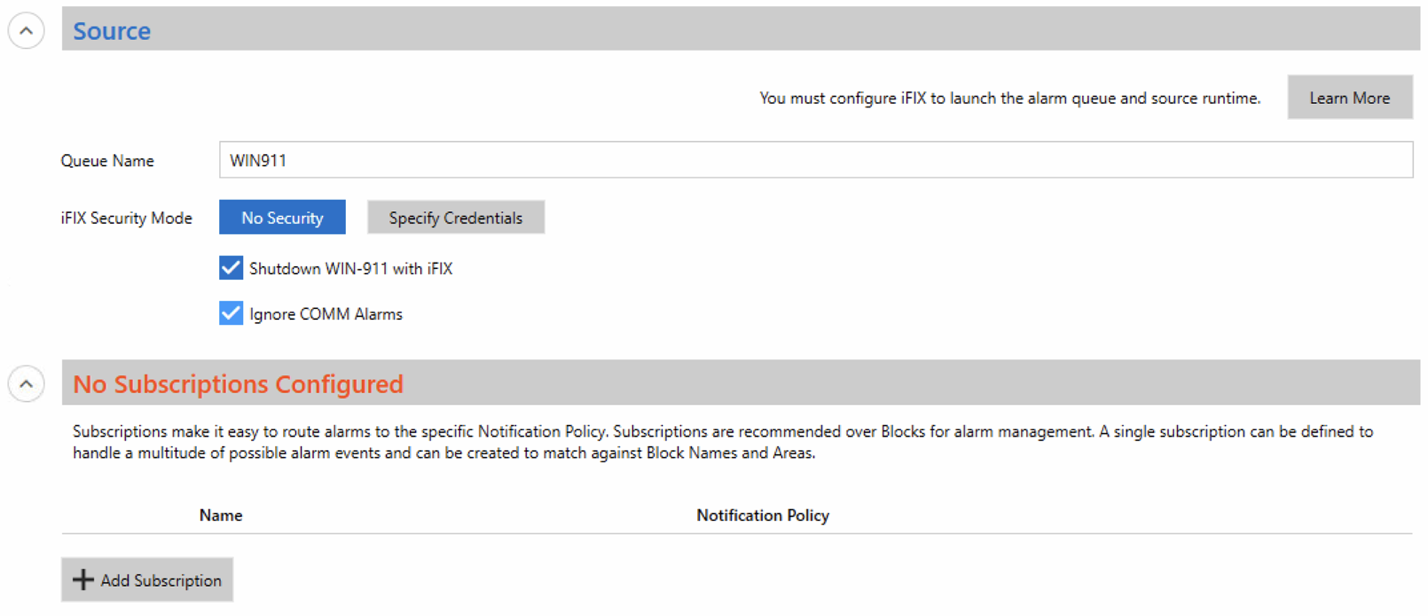
In the WIN-911 Workspace, expand Alarm Sources then click iFIX.
Note
The Queue Name is set to WIN911 by default, this queue name should match whatever was configured in the iFIX SCU task above.

Check the box for "Ignore COMM Alarms" if desired.

If Security is enabled on your iFIX deployment, Click "Specify Credentials" and enter the iFIX username and password.
We recommend creating a dedicated iFIX user account for use with WIN-911, in order to avoid communication loss if a password change occurs on an existing iFIX user account. This user account must have the appropriate permissions to acknowledge alarms.

Note
For information on how to create a dedicated user account, or on GE iFIX Security, please refer to the iFIX product documentation and/or GE Support.
The iFIX data source supports two different methods to bring alarms into WIN-911. Choose one method to manage alarms processed by WIN-911.
Allows filtering on Block Names and/or Areas
Subscriptions are less taxing on the processor
Dynamically brings alarms into WIN-911 (Add a new alarm that fits an existing Subscription criteria, that alarm will already be filtered into WIN-911)
Similar import process to Version 7 of WIN-911
Group alarms and point to a specific Notification Policy
Note
It is recommended to use Subscriptions to bring your iFIX alarms into WIN-911, as it is a dynamic process and does not require as much memory.
Expand Subscription section and click +Add Subscription
Type in a Name and select which Notification Policy the alarms will be sent to
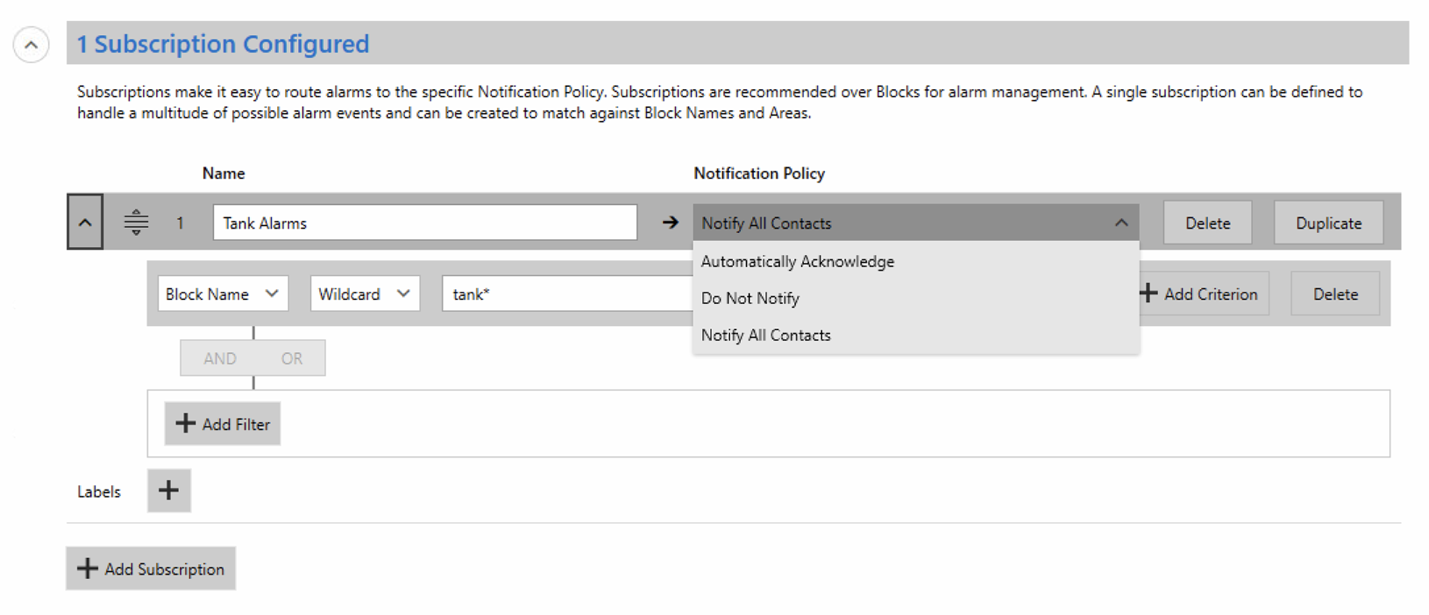
Clicking "Add Criterion" and using the built-in "AND / OR" options adds another layer of customization to each filter, allowing subscriptions to be as simple or complex as needed.
In this example, the filter will catch any Block Name that contains the word Tank OR any Block Name that contains the word Pump.

Click "Save iFIX Source" when finished. Alarms will be sent to the configured Notification Policy for the first matching subscription.
Note
Only 1 subscription can be matched, and no further processing against other subscriptions will occur.
Create as many subscriptions as needed. Reorder by dragging a line item up or down the list.
Note
A "catch all" for all alarms sent to a "Do Not Notify" Policy can be added as the last line item to verify alarms are being sent to WIN-911, you will see them in the Log Viewer. This Subscription filter can be deleted upon confirmation that alarms are being seen in WIN-911.
 |
Expand Blocks section and click Add Block (to manually create an alarm blocks) or Import Blocks (to import alarms from iFIX).

Manually enter the Name, select the iFIX node, and enter the iFIX Tag Name that matches the EXACT syntax of the alarm configured in iFIX. Assign the alarm block to the desired Notification Policy. Addition options of overwriting the iFIX description setting, assigning labels, and alarm state overrides exist here.

After clicking Import Blocks, the following message will appear:

Select All or a Specific Logical iFIX Node to import from - Click Next.

Select alarm Blocks to import, select the Notification Policy to assign them to, click the ">" arrow to move them to the right side of the import screen.
Note
Multiple alarms can be selected by holding the ctrl button on your keyboard while clicking

When all desired alarms have been moved to the "Blocks to Import" side (right side) click Import.


The alarm Blocks are now imported and available for any further configuration

And always... Save your changes!

Watchdogs (Optional)
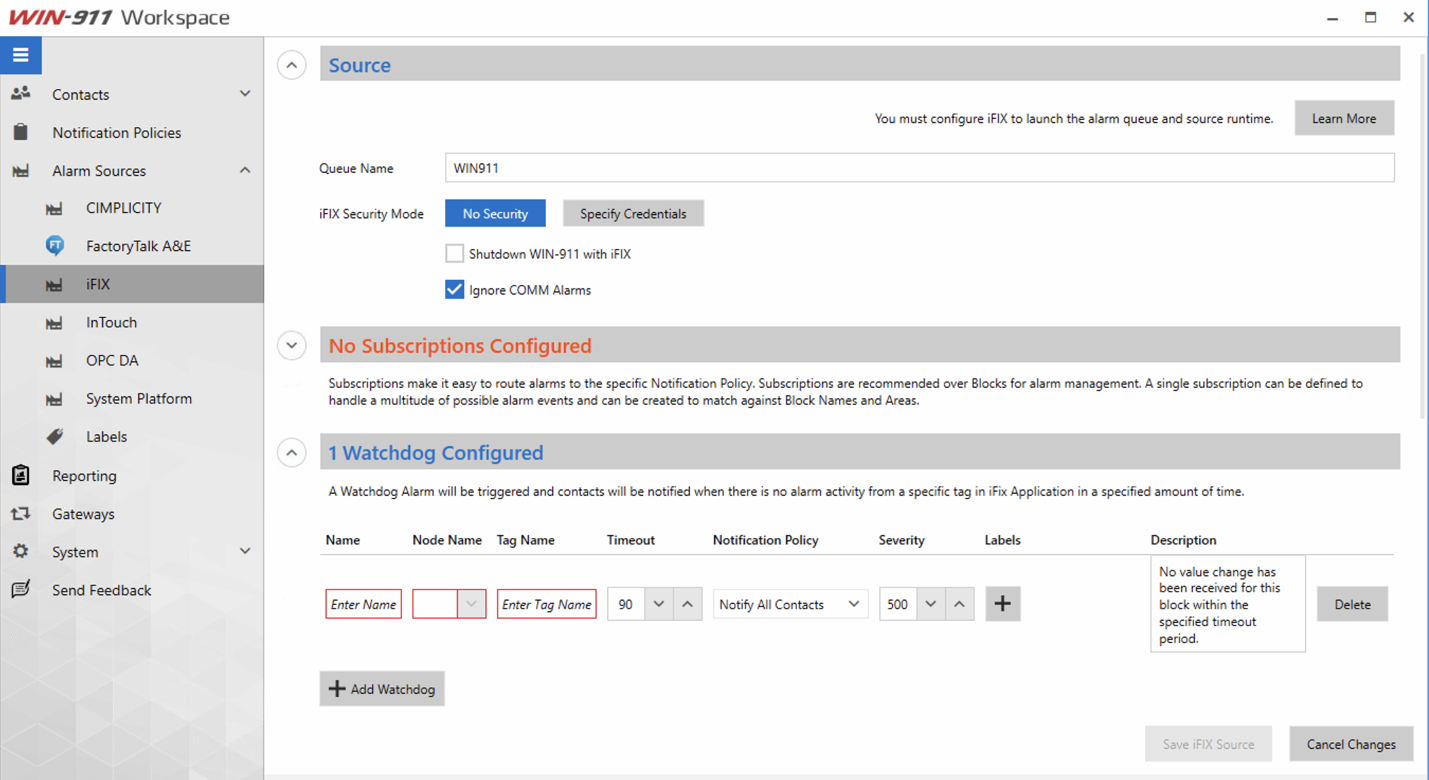
Watchdogs check tags for alarm activity. If the specified tag does not generate alarm activity within a user-defined interval, WIN-911 will activate a watchdog alarm.
Please note that this alarm must be pre-configured by the user. Ensure all Watchdogs are configured with database blocks that are dedicated to this unique purpose. Combining Watchdog blocks with other SCADA functions will cause the Watchdog not to function properly.
For more information, view the iFIX Watchdogs and Heartbeats Webinar (Source: Previous WIN-911 Version - 4.x.x).
 |
Health Alarm (Optional)
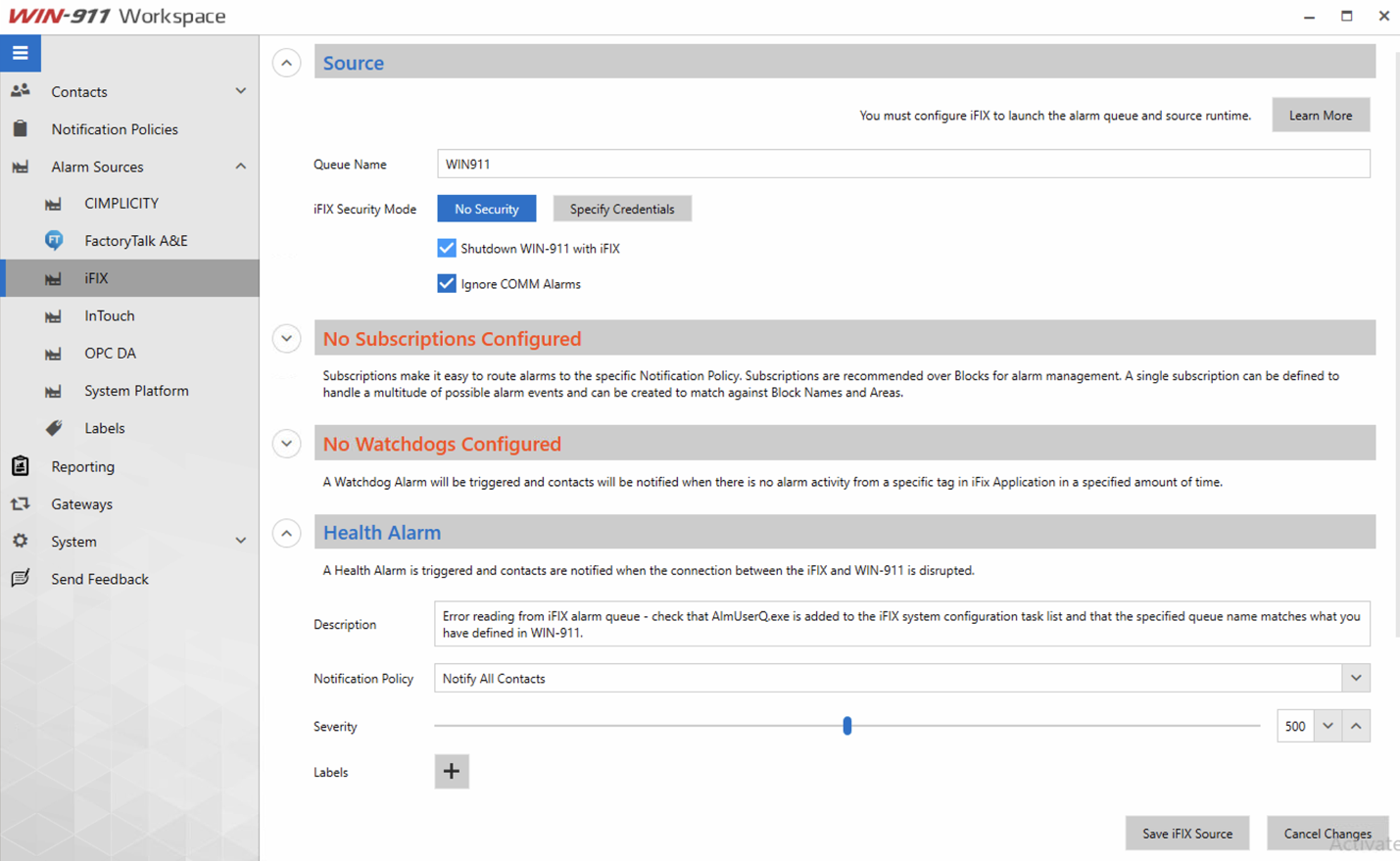
In case that the iFIX indicates a problem preventing queue processing, WIN-911 will activate the built-in Health Alarm. You may associate the Health Alarm with the strategy of your choosing in order to control the notification of this alarm.
 |
Heartbeats (Optional)
WIN-911 can indicate its operational status by writing a changing value to an integer value in your SCADA.
We call this function a Heartbeat because it provides a vital sign to iFIX, allowing for corrective action to be taken in case the WIN-911 system is offline.
The heartbeat takes the form of an Integer value that varies between 0 and 9, at intervals you choose. After the value reaches 9, it resets to 0. Then the process is repeated.
If the value fails to update within the specified time, you can assume that WIN-911 is in an impaired state and is no longer able to receive alarm event information.
 |
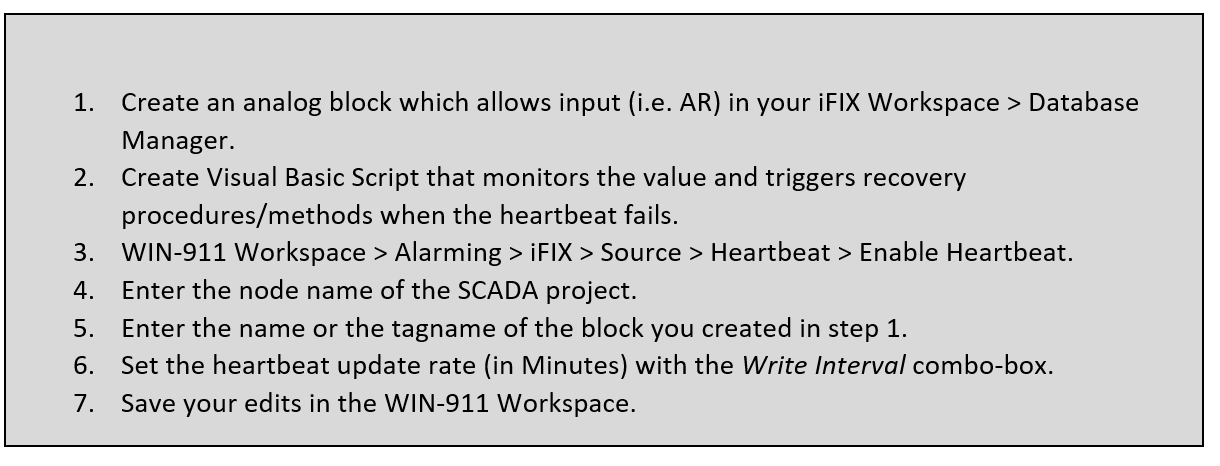
To set up a WIN-911 Heartbeat, complete the following steps:
Note
Ensure the AR Block you are using for the Heartbeat has Enable Output checked on the Advanced tab.