RSView SE Project
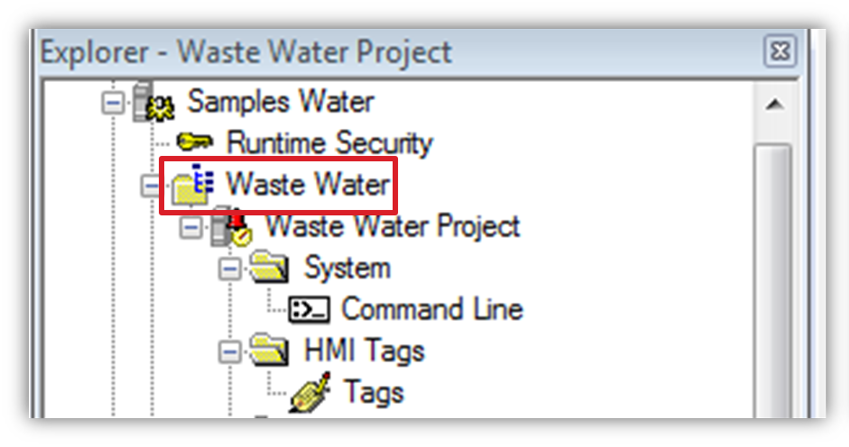
Under the RSView SE Project section of the tag import, you can define the Area Name for your project, this section fills in automatically, but if you are unsure, the Area name can be found in FT Studio.
 |
You are also given two options. Use Area for Tag Name Prefix will append the area name to the beginning of the tag, and Use Area to Generate Access Name, which will use the defined Area name, as the user-defined access name for this particular data source in WIN-911.
Once you click OK on the import, a window will pop open, showing you all the available tags to import. To import, simply click Select All or highlight individual tags and click Add, this will transfer them to the bottom window, you can then click Apply to complete the import.
Tag import allows you to associate tags with different WIN-911 Groups on the fly, rather than having to go and edit tags on a one by one basis. To do so:
Select the tags that you want to import and click add, this will transfer them to the bottom window.
In the red box below, under Group Name, type in the name of the group or select one that is already available.
When you have the tags that you want and the desired group name, click apply.

If you get the below error on a new configuration, the most likely cause is that the tags you are importing do not have alarms associated with. You can confirm either in FT Studio, or by opening the Alarm.CSV file.
 |
With alarm tags imported, you can now test the connection to see if alarms successfully come through in WIN-911. Do so by launching your FT Client as well as WIN-911's Scan & Alarm. With both of them launched, trigger an alarm in FT and confirm it in your FT Client's HMI Alarm Summary, if it is recognized in the FT Client Summary, but does not appear in the WIN-911 Alarm Monitor, follow the FactoryTalk SE HMI Tags procedure to resolve the issue.
Or you continue configuration by creating and adding Phone Book operators into your import groups.