OPC DA (Prior to 2021 R5)
Feb 11, 2023 Knowledge
Important
Please review the System Requirements page for supported SCADA versions and other helpful information.
Important OPC Notes
Important
Please review the OPC Network Diagrams for recommended architecture examples.
WIN-911 OPC DA Configuration
In the WIN-911 Workspace, expand Alarm Sources > OPC DA > Click Add New.


Fill out the corresponding fields in WIN-911, to connect to the OPC Server.
Name: Enter a name for your OPC data source.
Machine: Select whether the OPC server installed and running on the same Local machine as WIN-911 or on a Remote machine.
Server Class: Click the ellipsis button (3 dots on far right) to browse for the server class on the selected machine. Choose the correct OPC server from the list.
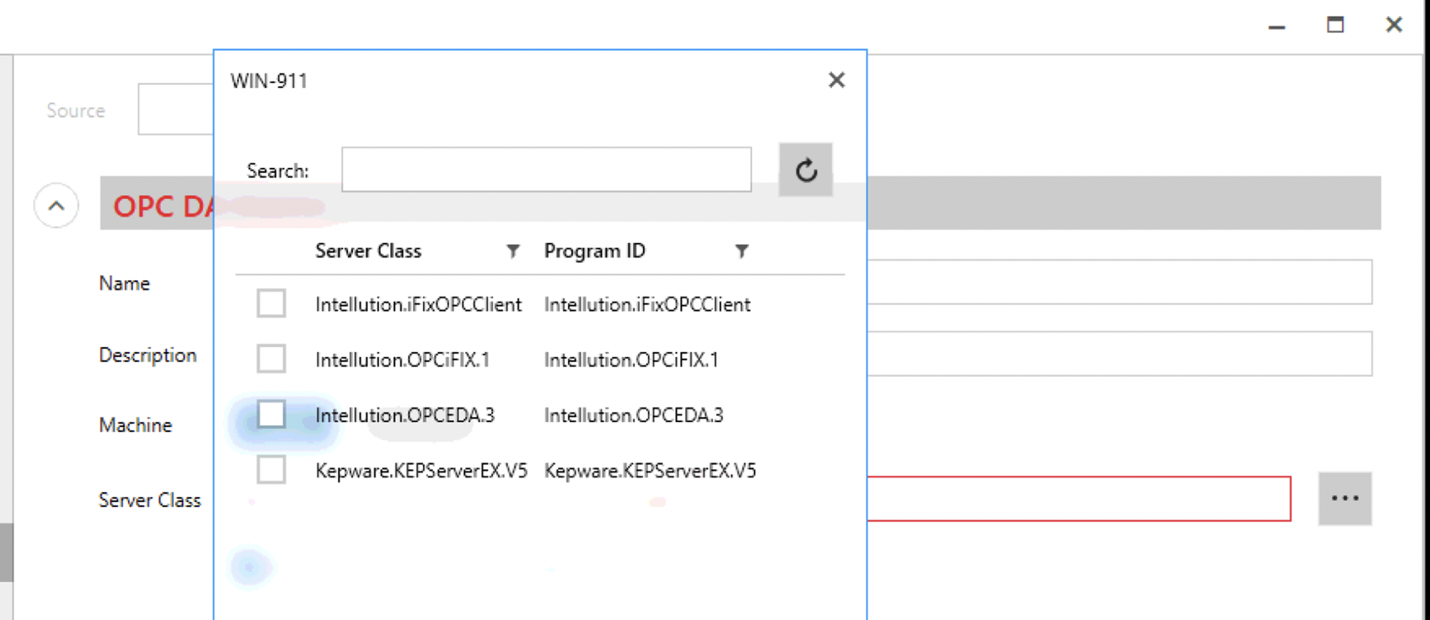

Alarms are configured in WIN-911 for OPC DA data sources and WIN-911 determines when a specific alarm condition exists. This is done by clicking Add Item or Import Items.
Clicking + Add Item will present a new item configuration entry.
Enter an Item Name, the Item ID can be manually entered exactly as it exists in the OPC server, or simply browse for the item with the ellipsis button (NOT ALL OPC servers support a browse feature).
Note
The browse window can easily be filtered with the search field.

Importing Items
If your OPC server supports the browse functionality, and DCOM is configured correctly to allow it, importing items to create alarms for can be much easier and less time consuming.
Select the desired items, click the > arrow to move them to the right side and click Next. ***Test whether the following image is shifted appropriately

Select an item and configure the Condition needed to consider this item "IN ALARM" in your environment.
Assign the item to the Notification Policy of your choice and click the > arrow to move the item to the right side. Repeat for all Items and click Import to finish the process for this group of Items.


And always... Save your changes!
