PEER™ Create/Update Ticket API
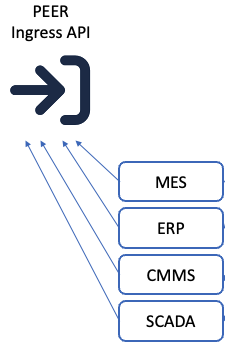
The Ingress API provides an endpoint for signaling PEER™ to create or update tickets when criteria are met in your other systems, auto-populating ticket fields based on those conditions. An endpoint also exists for extracting historical ticket data for ingestion into other systems.
PEER™ API Term Definitions
Term | Definition | Required (No Stacklights) | Required (Stacklights) |
|---|---|---|---|
PEER Login | In order to leverage the API Assistance page, a user must first log into their PEER instance with a valid login. | X | X |
Integration URL | This is the URL of either the "create" or "update" endpoint. | X | X |
Integration GUID | This a GUID that uniquely identifies a particular PEER™ instance | X | X |
Predefined Keyset | A set of PEER fields must be specified to identify how unique tickets need to be when generated or updated from the API. "Asset" is always included in this set, but must also consist of one or more system or custom PEER fields. For example, let's say there is a field called "Andon Type" with values "Material", "Quality", and "Safety", and the predefined keyset is specified as "Asset/AndonType". If a ticket for "Line 1 / Maintenance" is already open, a call to the API to create a new ticket with those same values would fail, regardless of the values in any other field. | X | X |
Stacklight Field | Stacklight color is based on the values present in this field for an asset. Let's use the example from the Predefined Keyset above: If "Andon Type" is used as the stacklight field, ABLE™ or PEER™ IoT would be able to illuminate the yellow light for a Quality ticket, the blue light for a Maintenence ticket, and/or the red light for a Safety ticket. | X | |
DeviceID | This is an 8-character string used by ABLE™ and PEER™ IoT to identify themselves | X |
PEER™ API Assistance Page
The API Assistance Page can be used to test calls to your own PEER™ instance, as well as providing valuable information for structuring your calls in your own toolkit. One must first log into a PEER™ instance in their browser before access is granted to the API Assistance Page. Once logged in, simply add a querystring parameter to your url:
Log in to your PEER instance with a valid login
Append the following querystring parameter to the "https://.../mobile/" URL now in your browser:
?APItestAssistance=1
Expand the appropriate endpoint to see its constituents
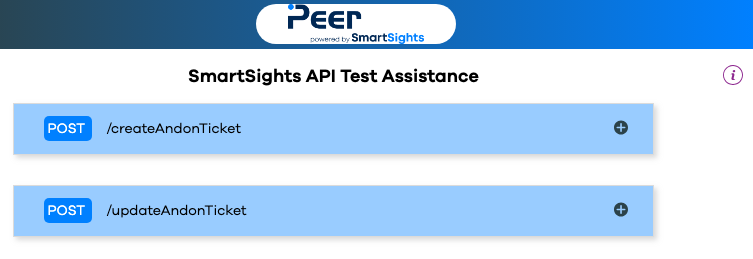
The parameters listed are all the system and custom fields available for invoking in your API call. Make special note of your "integrationGUID", as that will be the same for every call you end up making.
Key
Definition
Required
integrationGUID
A GUID unique to your PEER™ instance. It will be the same for every call.
X
asset
A string which must match the asset name for which the ticket is being created or updated
X
tsepoch
A UNIX-based epoch date (seconds since Jan 1, 1970). If not specified, the API will create the ticket with the current system time.
notificationGroup
A comma-delimited list of strings whose names exactly match those of notification groups set up in PEER™ configuration
X
andonstatus
A string identifying the value of the Andon Status system field. The options of this field can be expanded, but the three native (required) values are "Request Made", "Acknowledged", and "Closed".
X
Required Custom Fields
Any field created in configuration which have the "Required" checkbox ticked
X
Other Custom Fields
Custom fields without the "Required" checkbox ticked can be eliminated from the API call as parameters. Their values will show up as empty in the ticket.
Enter the required values into the POST form, and click the button. You will be presented with the generated Request URL representing your call, and a Response json string with result code. If successful, the only description in the response will be a unique ticket ID integer.
Warning
Unsuccessful responses will still return 200, but the "success" property of the resulting json will be "false", and the "errorMessage" should tell you why.
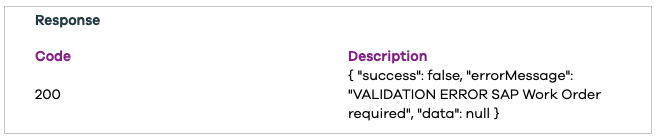
Note
If an update is performed, the only response returned in this description will be the "true" string (not a json string).
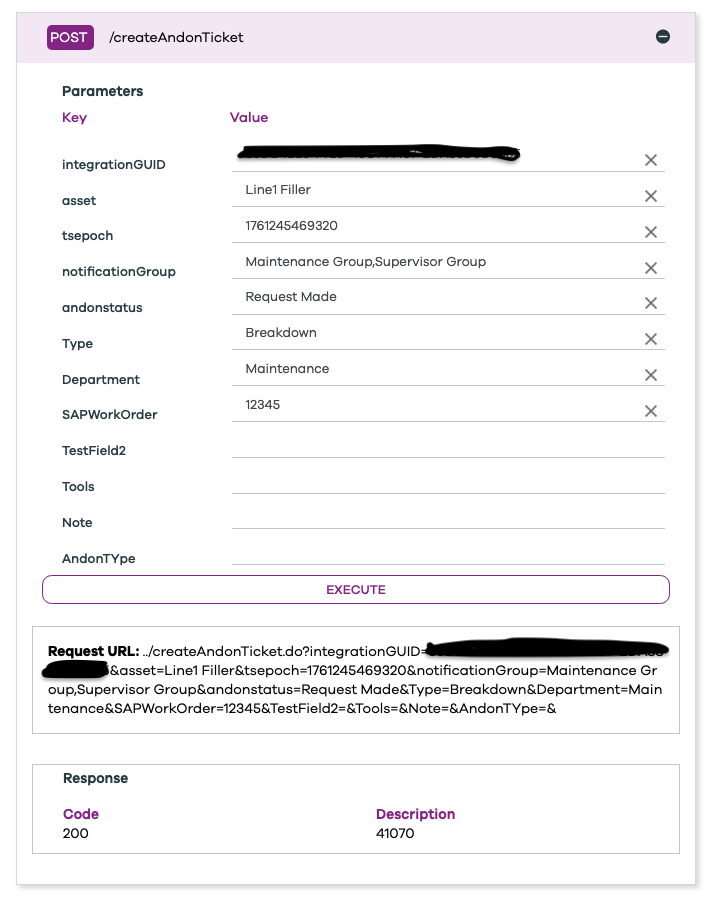
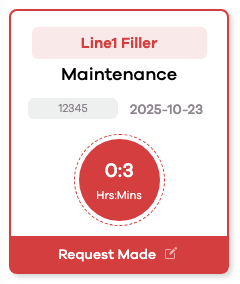
Note the ticket is created and displayed in the Message Center, notifications are sent, and sound alerts triggered.
Note
The "/updateAndonTicket" endpoint can be tested using the API Assistance Page as well. As long as the values of the fields contained in the Predefined Keyset are the same as the existing ticket, that ticket will be updated.
Invoking the API
When using your own custom toolkit, or when using Postman for example, the Integration URL will be largely the same as your PEER™ interface URL. Simply remove the "mobile/" portion of the URL and replace it with the name of the desired endpoint, and adding the required querystring parameters:
Before | https://andon.sageclarity.com/AndonCenter/SmartSights/mobile/ |
After | https://andon.sageclarity.com/AndonCenter/SmartSights/createAndonTicket.do?integ... |
Note
The API requires a POST method. The examples in this document make it appear as though it would accept a GET with querystring parameters, but that is not the case.
Example: Create a ticket
The parameters in this example are from the PEER™ "Entry Form", which differ from the "Status Form". Include only the required system/custom fields, and any optional fields whose values are changing.
Param | Example Value |
|---|---|
integrationGUID | 6B29FC40-CA47-1067-B31D-000000000000 |
asset | Line1 Filler |
tsepoch | 1761245469320 (do not include this parameter to default to current datetime) |
notificationGroup | Maintenance Group,Supervisor Group |
andonstatus | Request Made (this should be the value always passed for creating a ticket) |
Type | Breakdown |
Department | Maintenance |
SAPWorkOrder | 12345 |
.../createAndonTicket.do ?integrationGUID=6B29FC40-CA47-1067-B31D-00DD010662DA &asset=Line1 Filler ¬ificationGroup=Maintenance Group,Supervisor Group &andonstatus=Request Made &Type=Breakdown &Department=Maintenance &SAPWorkOrder=1234
Example: Update a ticket
The parameters in this example are from the PEER™ "Status Form", which differ from the "Entry Form". Include only the required system/custom fields, and any optional fields whose values are changing.
Param | Example Value |
|---|---|
integrationGUID | 6B29FC40-CA47-1067-B31D-00DD010662DA |
asset | Line1 Filler |
tsepoch | 1761245489320 (do not include this parameter to default to current datetime) |
notificationGroup | Maintenance Group,Supervisor Group |
andonstatus | Acknowledged |
Responder | John Doe |
.../updateAndonTicket.do ?integrationGUID=6B29FC40-CA47-1067-B31D-00DD010662DA &asset=Line1 Filler ¬ificationGroup=Maintenance Group,Supervisor Group &andonstatus=Acknowledged &Responder=John Doe
Example: Close a ticket
The parameters in this example are from the PEER™ "Status Form", which differ from the "Entry Form". Include only the required system/custom fields, and any optional fields whose values are changing.
Param | Example Value |
|---|---|
integrationGUID | 6B29FC40-CA47-1067-B31D-00DD010662DA |
asset | Line1 Filler |
tsepoch | 1761245489320 (do not include this parameter to default to current datetime) |
notificationGroup | Maintenance Group,Supervisor Group |
andonstatus | Closed |
Approver | Boss of John Doe |
ResolutionNotes | After replacing a faulty bearing on conveyor 23A, the line was able to start up |
.../updateAndonTicket.do ?integrationGUID=6B29FC40-CA47-1067-B31D-00DD010662DA &asset=Line1 Filler ¬ificationGroup=Maintenance Group,Supervisor Group &andonstatus=Closed &Approver=Boss of John Doe &ResolutionNotes=After replacing a faulty bearing on conveyor 23A, the line was able to start up
Troubleshooting
Here are some common unsuccessful invocation errors:
Response Example | Interpretation |
|---|---|
{
    "success": false,
    "errorMessage": "Dropdown Entry required",
    "data": null
} | If any of the keyset or required fields are missing, the field name will be mentioned in the error |
{
    "success": false,
    "errorMessage": "Asset does not exist for the Company",
    "data": null
} | The name passed in the asset parameter must exactly match any asset name in configuration |
{
    "success": false,
    "errorMessage": "Andonstatus required",
    "data": null
} | Andonstatus is a required system field |
{
    "success": false,
    "errorMessage": "VALIDATION ERROR Mandatory Update required",
    "data": null
} | The custom "Mandatory Update" field was not specified in the update call |
{
    "success": false,
    "errorMessage": "Andon Status cannot be Closed",
    "data": null
} | A new ticket cannot be opened in the "Closed" Andon Status |
{
    "success": false,
    "errorMessage": "Multiple tickets found",
    "data": null
} | If multiple tickets are found with the same values in the predefined keyset, this message will result |