Editing User Groups
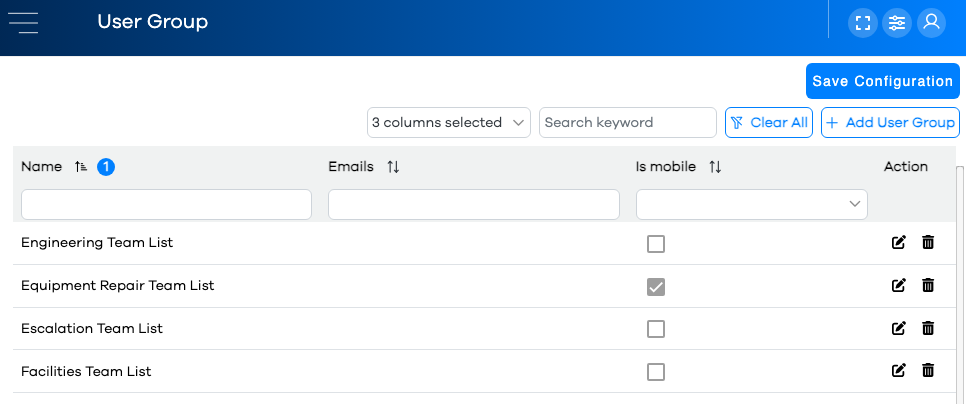
User Groups are edited by clicking the button in the of the Configuration app.
The list of current user groups will be displayed in a Configuration Grid. The columns (user group parameters) available to display in the grid are:
Adding a New User Group
Click the button at the upper-right of the grid.
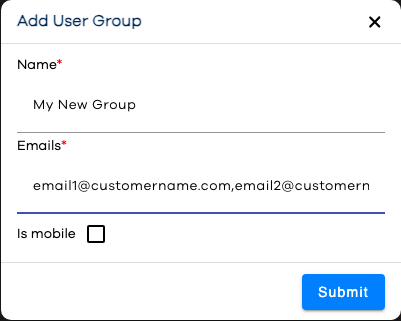
Specify a unique User Group name, ideally relatively short
Specify recipient email addresses, separating multiple email addresses with commas
Warning
When entering these comma-delimited values, it is important to suppress any white space around the comma delimiters. For example "Option1, Option2, Option3" is incorrect, because a space exists after each comma. Instead, this list would be specified as "Option1,Option2,Option3".
Tick the Is Mobile checkbox if this notification group should receive emails in mobile format
Click the button
Note that your new User Group appears in the configuration grid.
Warning
If your grid is filtered or sorted, be mindful that the new row might not be visible on the current page of rows, or based on the current column filters and/or keyword search.
Important
After making edits or additions in Configuration, it's important to remember to click the button so your changes will be communicated to the runtime. Runtime users will need to refresh their browsers for the changes to be reflected.