Managing PEER Tickets
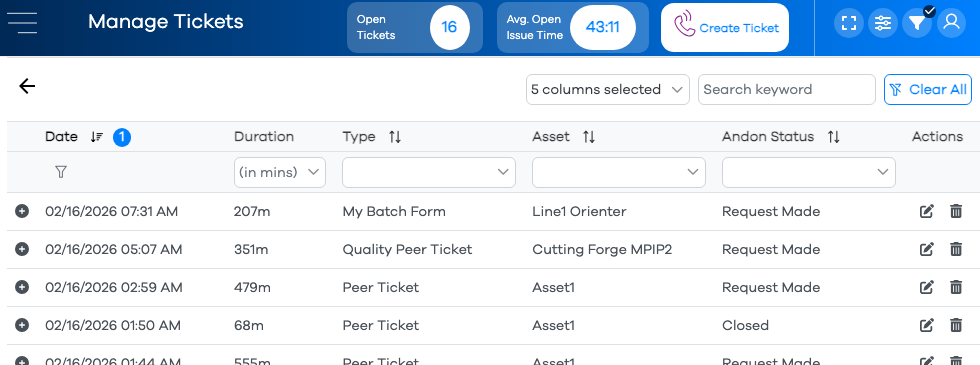
In cases where information was incorrectly submitted on a ticket that's already been closed, historical data can be changed using the Manage Peer Tickets option in the left nav menu. Upon entering this section, you will be presented with a Configuration Grid which lists all closed tickets in your current filter.
Caution
If no tickets appear in history, it's likely there are filters set. Be sure to set your desired criteria in the Filters menu appropriately.
Expanding the ticket using the button to the left of each row will expose a summary of the data in the fields designated as “Edit” when setting up the respective form.

Users in the standard Operator role can click the button to the right of each row to expose the entire ticket history. Administrators, however, will be presented with both and buttons.
Editing a Closed Ticket
Click the button the right of the desired ticket.
You will be presented with the fields specified as "Edit" when creating the respective form.
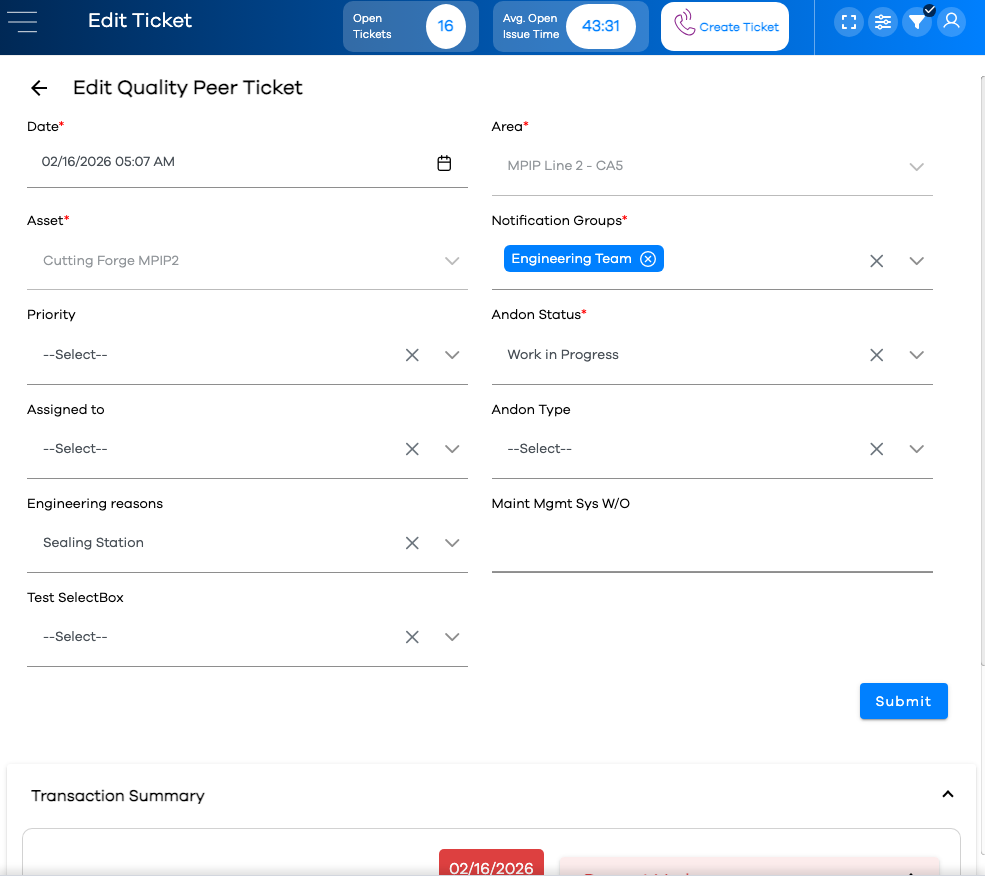
Make changes to the appropriate fields.
Warning
Take note of the Andon Status field. If you leave this field as-is (typically at "Request Made"), any changes you make in the fields will change the data originally entered on the create form.
However, if you change this field to a different status, any entries you make will result in the creation of a new update transaction, and will be tacked on to the end of the transaction history. This will result in today's date being included when calculating metrics in the Reporting Center.
Click the button.
If you changed data to the "Request Made" status, note the changes are reflected in the configuration grid.
Warning
If your grid is filtered or sorted, be mindful that the new row might not be visible on the current page of rows, or based on the current column filters and/or keyword search.