Editing Filters
The PEER™ filter fields available in the Runtime default to certain system fields based on the currently-selected view. Additionally, other system and custom fields can be exposed in the Filters flyout.
Note
Only custom and system fields meeting the following criteria will be available to expose in the Filters flyout:
The field must exist on ALL create forms
The field must be one of the following types:
There are only two parameters available in the Edit Filters Configuration Grid:
Parameter | Description | Required? |
|---|---|---|
Name | Corresponds to the name of the field by which a filter is applied | Yes |
Order | The numeric order in which the fields appear in the Filters Flyout NoteThe order cannot be modified. Fields will appear in the order they are added to the grid. | Yes |
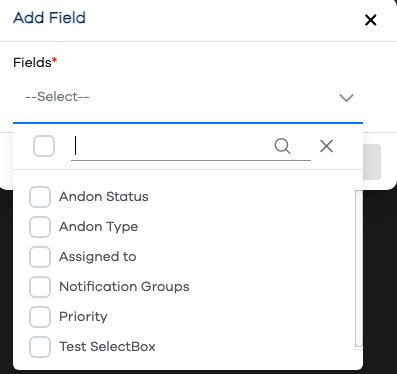
Use the button to select a custom field for addition the Filters Flyout.
Note
Some System Fields cannot be removed from the flyout, thus they expose no buttons in the Actions column of the grid.
Select one or more custom or system fields for adding to the form.
Click the button.
Important
After making edits or additions in Configuration, it's important to remember to click the button so your changes will be communicated to the runtime. Runtime users will need to refresh their browsers for the changes to be reflected.