Editing One-Clicks
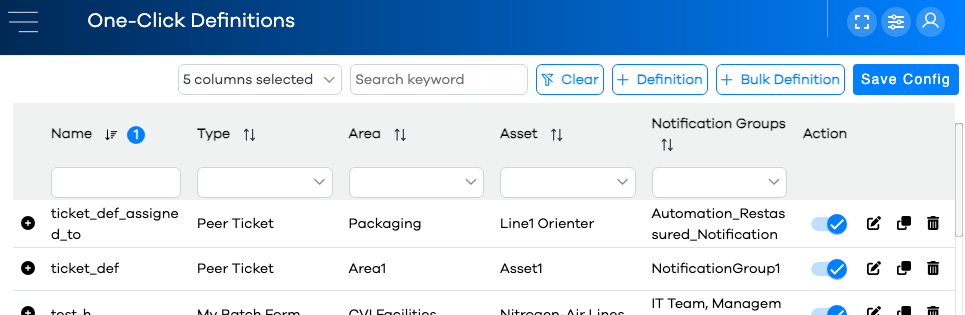
Click the button in the left navigation bar.
There are four actions you can take from the One-Click Definition Configuration Grid:
Action
Description
Enable/Disable
This toggle button allows you to enable a one-click definition, or to remove it from the One-Click Center without actually deleting it.
Edit
The pencil icon allows you to edit an existing One-Click Definition.
Clone
This button assists in adding multiple similar One-Click Definitions where all but one or more fields are the same. Clicking this button will present the One-Click Definition wizard with the same information you're cloning from. Simply change the name of the form, and the default values to create the clone.
Note
The button can also assist in creating multiple One-Click Definitions en masse, if the field values are all similar, with only Area/Asset differing. This will be discussed further down in this article.
Delete
The trash can icon will remove a One-Click Definition altogether.
Click the button to add a new One-Click, or click the pencil icon to edit an existing one.
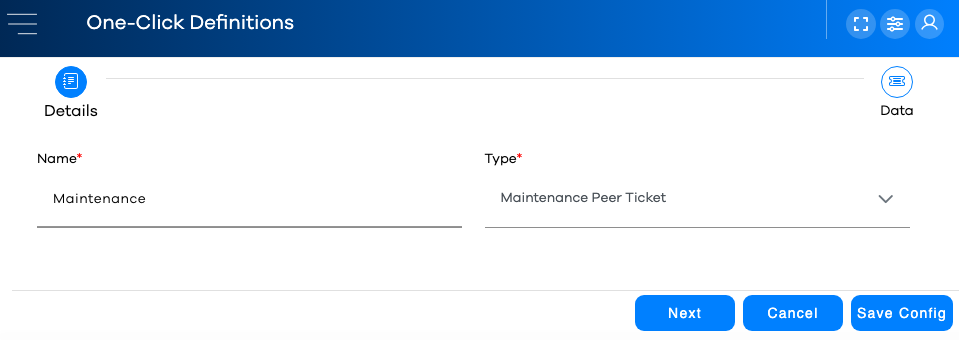
On the Details tab of the Wizard, specify a Name for the One-Click Definition, and choose the form to use when the operator clicks it.
Click the button, or the button to move to the field value specifications window.
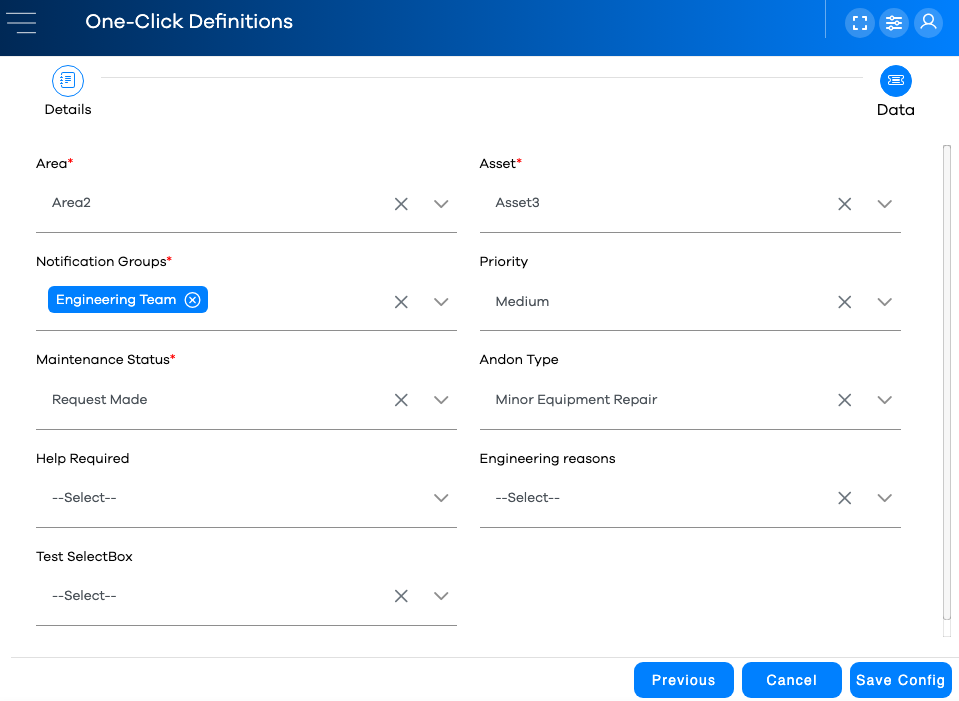
Specify the value for each field to be auto-assigned when the ticket is created by the operator clicking the tile in the One-Click Center.
Important
After making edits or additions in Configuration, it's important to remember to click the button so your changes will be communicated to the runtime. Runtime users will need to refresh their browsers for the changes to be reflected.
Bulk Definition Editor
Use this feature to create multiple One-Click Definitions which specify the same field values, just for different Areas and Assets. For example, if you wanted to create a Medium-Priority Maintenance ticket for the Engineering Team on all Assets in Area 2, specifying the appropriate fields once in this editor would create a One-Click Definition with only a few clicks.
From the One-Click Definitions window, click the button.
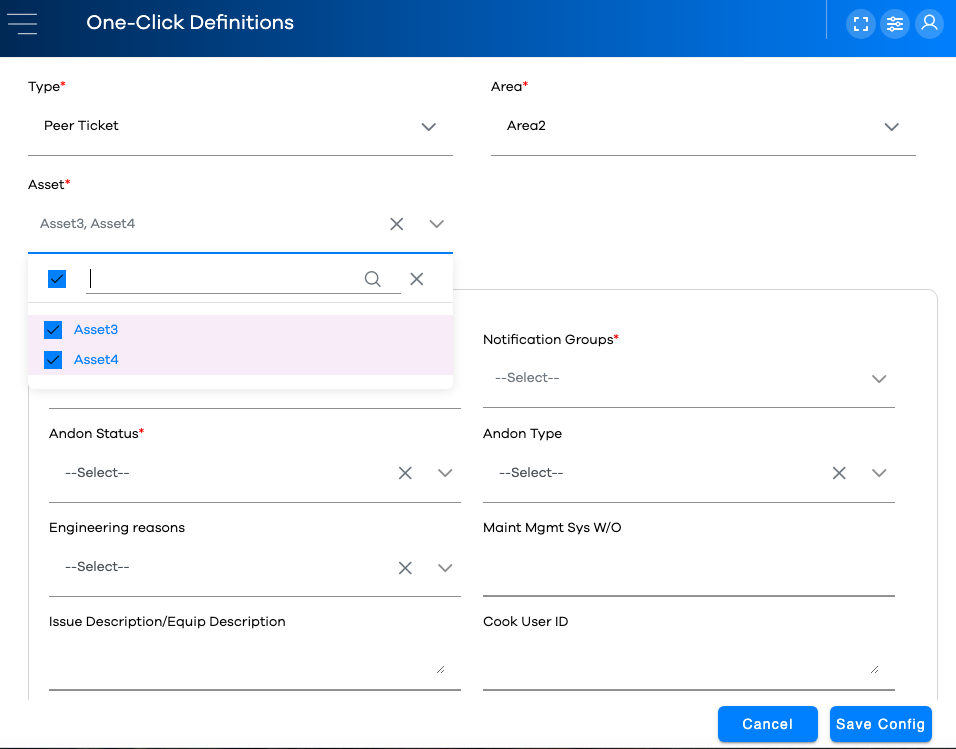
Specify the Ticket Form to use, and an Area.
All the Assets in the selected Area will be automatically selected, but you can use the checkboxes in the dropdown to selectively specify which Assets for which this definition will be created.
Specify the values to be auto-filled in the Create Ticket form when this definition is clicked in the One-Click Center.
Important
After making edits or additions in Configuration, it's important to remember to click the button so your changes will be communicated to the runtime. Runtime users will need to refresh their browsers for the changes to be reflected.