Reporting Center
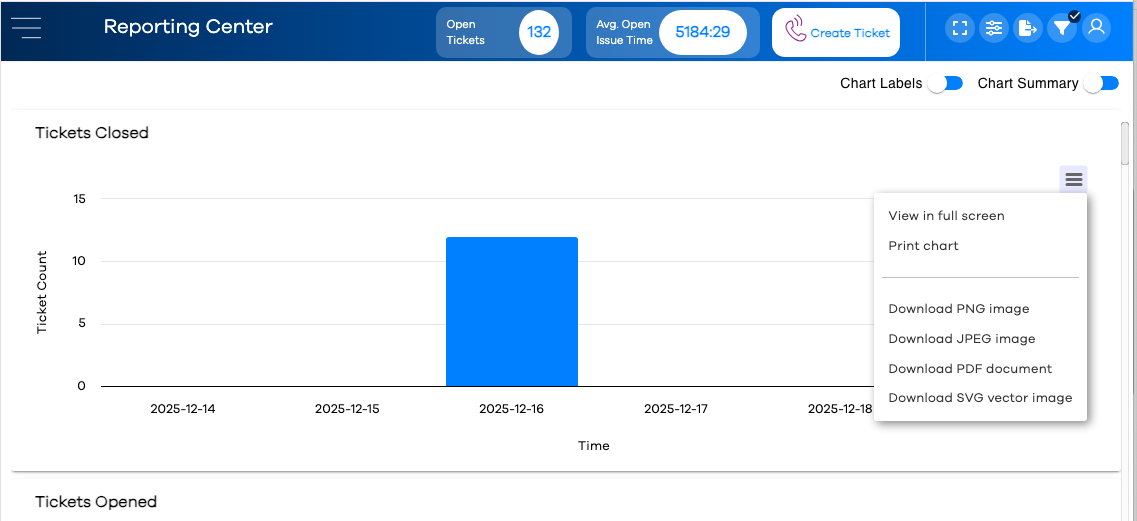
The Reporting Center provides automatically-generated reports based on fields set up in your various forms. The reports are generated in the following order, based on the currently-selected filters:
Note
These reports display ticket counts, unless a different formula is specified.
Tickets Closed
Tickets Opened
Mean Time Between Andons =
Open Tickets by Line (Asset)
Closed Tickets by Line (Asset)
Closed Tickets by Notification Group
Tickets by Status
Open Tickets by Priority
Closed Tickets by Priority
Closed Tickets by Assigned To (the user that acknowledged the new ticket)
Average Ticket Time =
Note
Only tickets with both a request made transaction and a closed transaction are included
Average Resolution Time =
Note
Only tickets with both a closed transaction and an acknowledged transaction are included
Average Response Time =
Note
Only tickets with both a request made transaction and an acknowledged transaction are included
Closed Tickets by custom fields on all forms (one per form/field combination)
Note
The order of these custom reports at the bottom of the Reporting Center is governed by the order in which the fields are added to forms. For example, if Field 1 is added in Form A and then Field 2 in Form B, the charts will appear as: "Form A – Closed Tickets by Field 1", followed by "Form B – Closed Tickets by Field 2".
And again, only fields of the following types will generate a report in the Reporting Center:
Reporting Center Date Range Selection
The Reporting Center will reflect data for a specific date range. The current date selection is indicated in the lower-left corner of the Reporting Center view, and applies to both built-in date selections and custom date selections (more on custom date selection below).
The built-in date range selections are located in the lower right of the Reporting Center view, and are defined below.

Option Abbreviation | Description |
|---|---|
TODAY | Current day, starting at midnight |
WTD | Week to Date, starting Monday at midnight |
PW | Previous Week, between Monday midnight through the most recent Sunday |
MTD | Month to Date, starting at midnight on the 1st of the month, through current day |
PM | Previous Month, between midnight on the 1st of last month, through the last day of last month |
YTD | Year to Date, starting midnight on Jan 1, through current day |
In addition to the built-in date selections, custom date ranges can be selected using Filters (in addition to filtering reports to specific field values, covered in the Editing Filters topic).
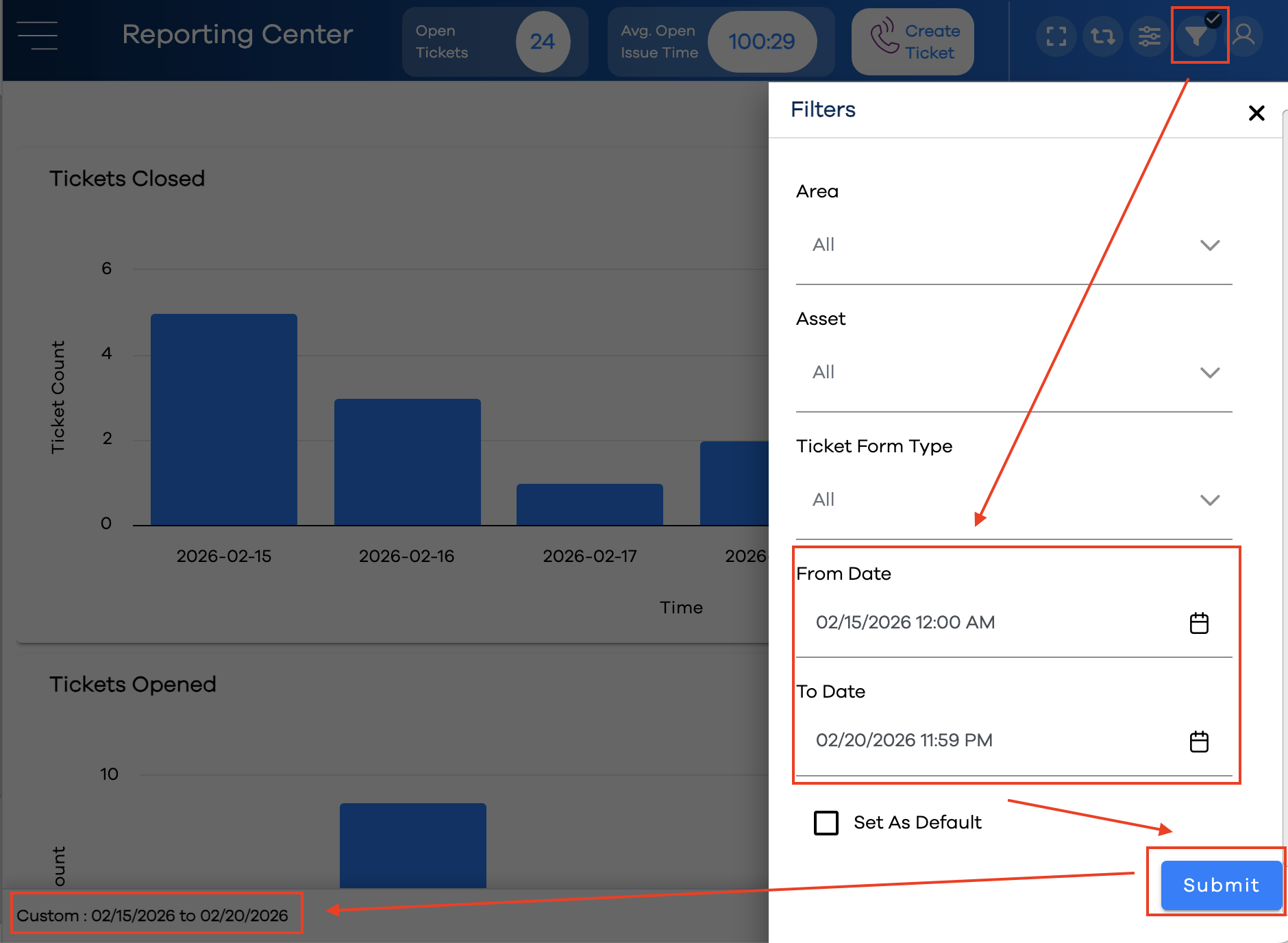
Click the button in the upper-right corner of the screen
Specify a From Date and To Date
Click the button
Note the newly-selected date range is reflected in the lower-left corner of the Reporting Center view.
Other Reporting Center Options
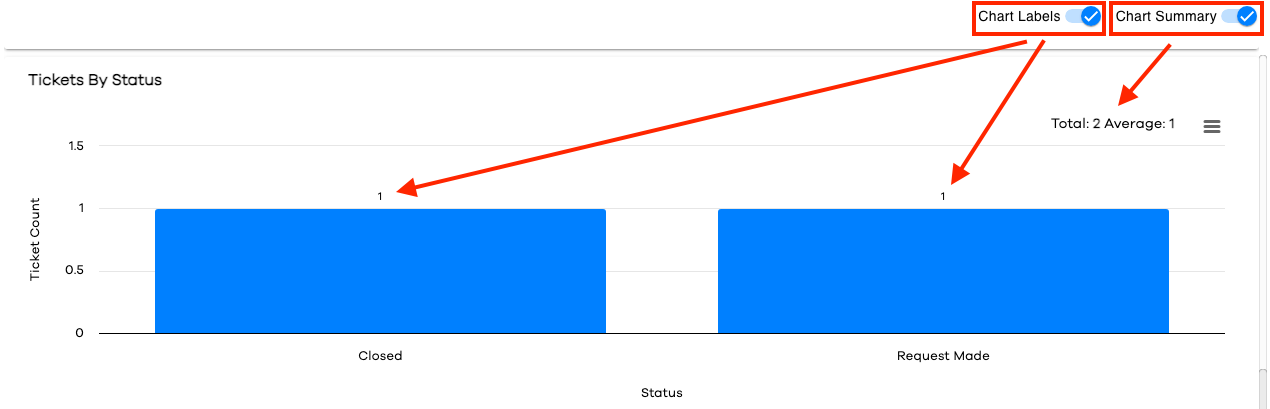
The Reporting Center has additional features that can be toggled on and off.
Feature | Description |
|---|---|
Chart Labels | When activated, labels will persist above the chart bars exposing the numeric value of that bar. NoteThese values can also be exposed interactively by hovering over any bar. |
Chart Summary | When activated, two standard metrics will appear in the upper-right corner of each chart:
|