Editing Forms
Forms are edited by clicking the button in the .
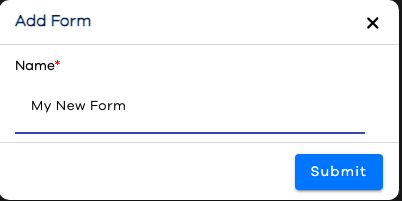
When launching the Form Editor, you'll first be presented with a list of available forms. You can edit an existing form, or add a new on by clicking the button. The only parameter to specify when adding a new form is the name of the form itself.
The list of current forms will be displayed in a Configuration Grid. The columns (form parameters) available to display in the grid are:
Editing a Form
When you edit a form, a Form Configuration Wizard appears, with three steps, to each of which you can navigate with the wizard timeline:
Form Details: Allows you to edit the name of your form only
System Fields: Determines which system fields will appear on your form, and in what order
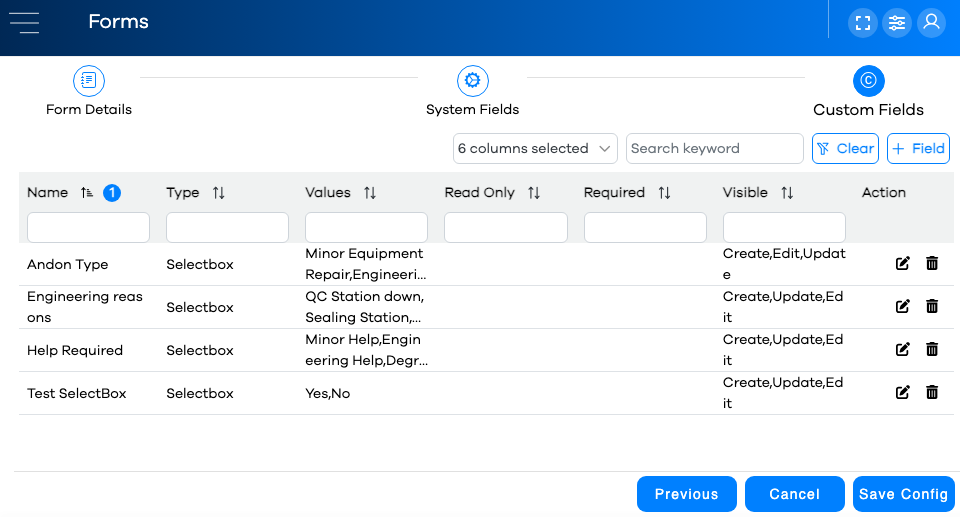
Custom Fields: Determines which custom fields will appear on your form, and in what order
Check your Form name to ensure it is correct, or edit it if you wish
Click the button, or click on the button. The system fields will be presented in a standard Configuration Grid, with a column for each form field parameter listed above.
Note
A maximum of 6 columns can be visible at a time in a Configuration Grid.
Click on the button to add a new field, the pencil icon next to a field to edit it, or the trash can icon to remove the field from the form.
Most attributes are read-only when placing system fields on forms (i.e. "Area", "Asset", "Status", etc). The exception is the "Name" attribute, which can be changed based on the form where it is added. For example, you could change the field name "Andon Status", to appear as "Maintenance Status" on the Maintenance Form, without affecting the actual back-end field name.
Click the button, or click on the button. Any custom fields added to a form will appear after the system fields. Add only the fields which apply to the form you're editing.

The following attributes can be edited when placing a field on a form. Changes to the read-only attributes (i.e. "Type", "Value") must be edited using the Field Editor.
Attribute
Notes
Name
This attribute only applies to the current form. The name of the actual field will not change when editing in the Field Editor.
Order
Changes the order in which the field appears on the form relative to other fields. System fields always appear first. After than, enter numeric values to determine order. Duplicate numeric values rever to alphanumeric sorting on the Name field.
Required
Determines whether submission of the form is allowed without providing a value.
Read Only
Allows a field's value to be displayed on the form without an operator being able to edit it.
Visible
Create
Field appears when creating a new ticket
Update
Field appears when updating an existing ticket
Edit
Field appears when editing a ticket using Managing PEER Tickets
Click the button.
Any changes you made will be reflected in the Configuration Grid.
Warning
If your grid is filtered or sorted, be mindful that the new row might not be visible on the current page of rows, or based on the current column filters and/or keyword search.
When satisfied with your changes, click the button to commit them. You will need to refresh any browser windows using the Runtime for them to be reflected there.