User Preferences
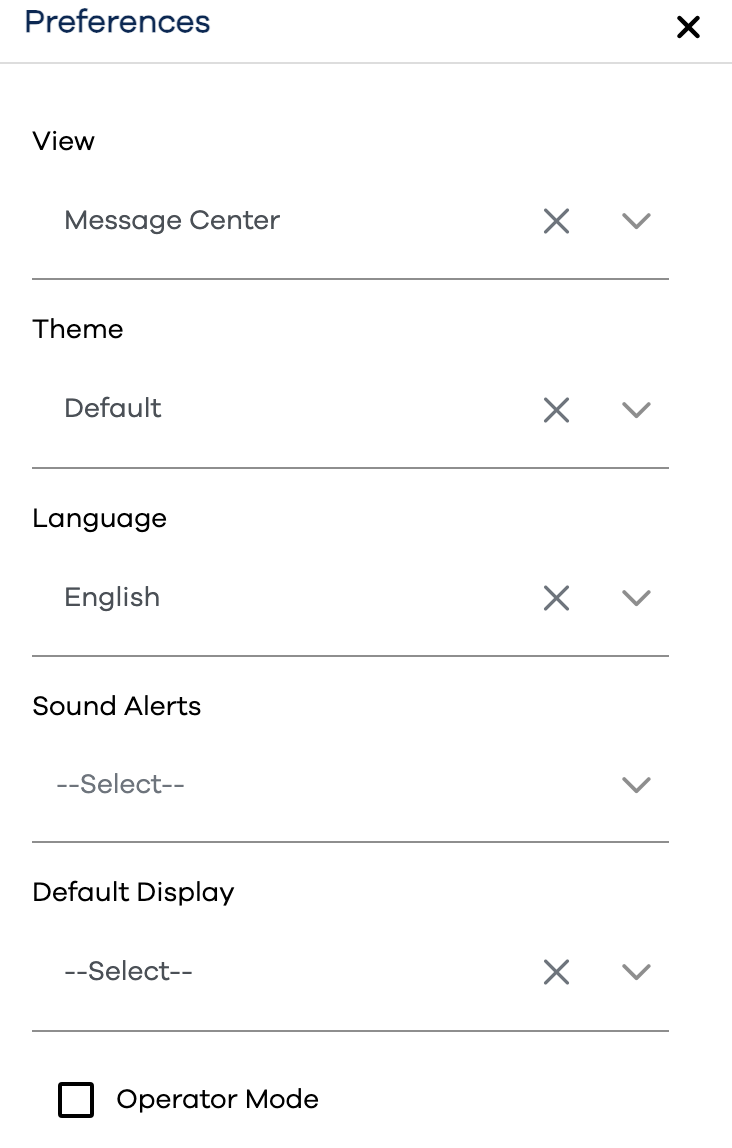
Preferences may be set and saved against your current User Login.
Option | Description |
|---|---|
View | Options in this drop down are populated based on whether you have access to ABLE™, PEER™, or both. They relate to a view selection in the left-hand navigation bar. |
Theme | The default theme is "Light", but "Dark" can be specified here |
Language | The language in which terms should be displayed in the application |
Sound Alerts | Options in this drop down are populated from any Sound Alerts currently configured in the the Configuration app. Select one or more of those if you wish you pc to provide audible notifications while you have the application open in your browser. |
Default Display | Options in this drop down are populated based on Displays set up in ABLE™, if applicable to your instance. Select an option to display by default whenever entering Layout View. |
Operator Mode | When selected, clicking on an asset within the ABLE™ Layout View will expose the Operator View for that particular asset, rather than the default Asset Detail view popup. |
Launch the preferences flyout by clicking either the button at the bottom of the left-hand navigation bar, or the in the upper-right corner of the window
Make your selections
Click the button