Editing Sound Alerts
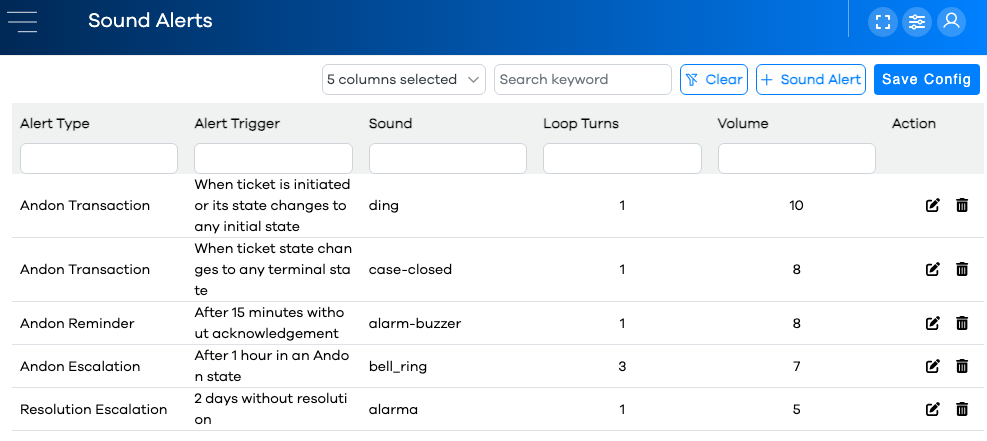
Sound Alerts are edited by clicking the button in the left-hand navigation menu.
The list of current sound alerts will be displayed in a Configuration Grid.
Sound Alert Parameters
Sound Alert Parameters are specified in the Sound Alerts Editor, and are as follows:
Parameter | Description | Required? |
|---|---|---|
Alert Type | The type of rule used to test whether a Sound Alert should be triggered. The options for this parameter are summarized in the Smart Notifications topic. | Yes |
Alert Trigger | The condition which triggers the Sound Alert, based on the alert type. These are also summarized in the Smart Notifications topic. | Yes |
Sound | Choose a sound alert from the list of native sounds. | Yes |
Loop Turns | When the alert is triggered, the selected sound will be played this many times in a row. Options are between 1 and 5. | Yes |
Volume | Select a volume between 0 (silent) and 10 (loudest). | Yes |
Preview | Use the and buttons to preview the selected sound. | No |
Adding a New Sound Alert
Click the button in the upper-right of the grid.
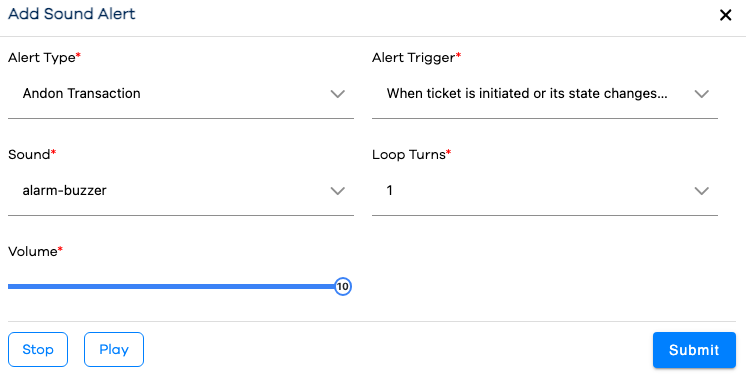
Choose an Alert Type from the dropdown.
Based on that Alert Type, select an Alert Trigger option from the dropdown.
Choose a sound from the dropdown.
Specify the number of times the sound should play when this Sound Alert is triggered in the "Loop Turns" parameter.
Specify a volume at which this sound should play.
Optionally, preview your sound using the and buttons in the lower-left of the dialog.
Click the button.
Note that your new Sound Alert appears in the configuration grid. Additionally, users can opt in or out of specific Sound Alerts through their personal preferences.
Warning
If your grid is filtered or sorted, be mindful that the new row might not be visible on the current page of rows, or based on the current column filters and/or keyword search.
Important
After making edits or additions in Configuration, it's important to remember to click the button so your changes will be communicated to the runtime. Runtime users will need to refresh their browsers for the changes to be reflected.