Editing Fields
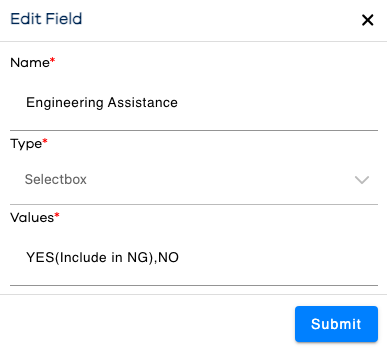
Fields are edited by clicking the button in the .
Both system and custom fields will be listed in a Configuration Grid. The columns (field parameters) available to display in the grid are:
Adding a New Field
Click on the button in the upper-right above the grid.
Specify a unique name for the field (remember, this field could be re-used on multiple forms).
Specify a field type.
If applicable, specify the available values in the field.
Warning
When entering these comma-delimited values, it is important to suppress any white space around the comma delimiters. For example "Option1, Option2, Option3" is incorrect, because a space exists after each comma. Instead, this list would be specified as "Option1,Option2,Option3".
Click the button.
Note that your new field appears as a row in the grid.
Warning
If your grid is filtered or sorted, be mindful that the new row might not be visible on the current page of rows, or based on the current column filters and/or keyword search.
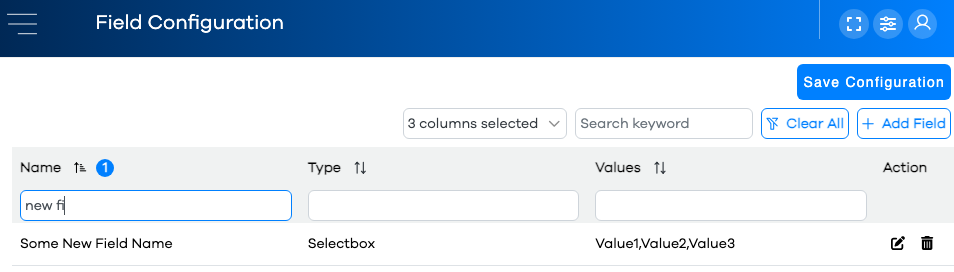
When satisfied with your changes, click the button to commit them. You will need to refresh any browser windows using the Runtime for them to be reflected there.