Replay View
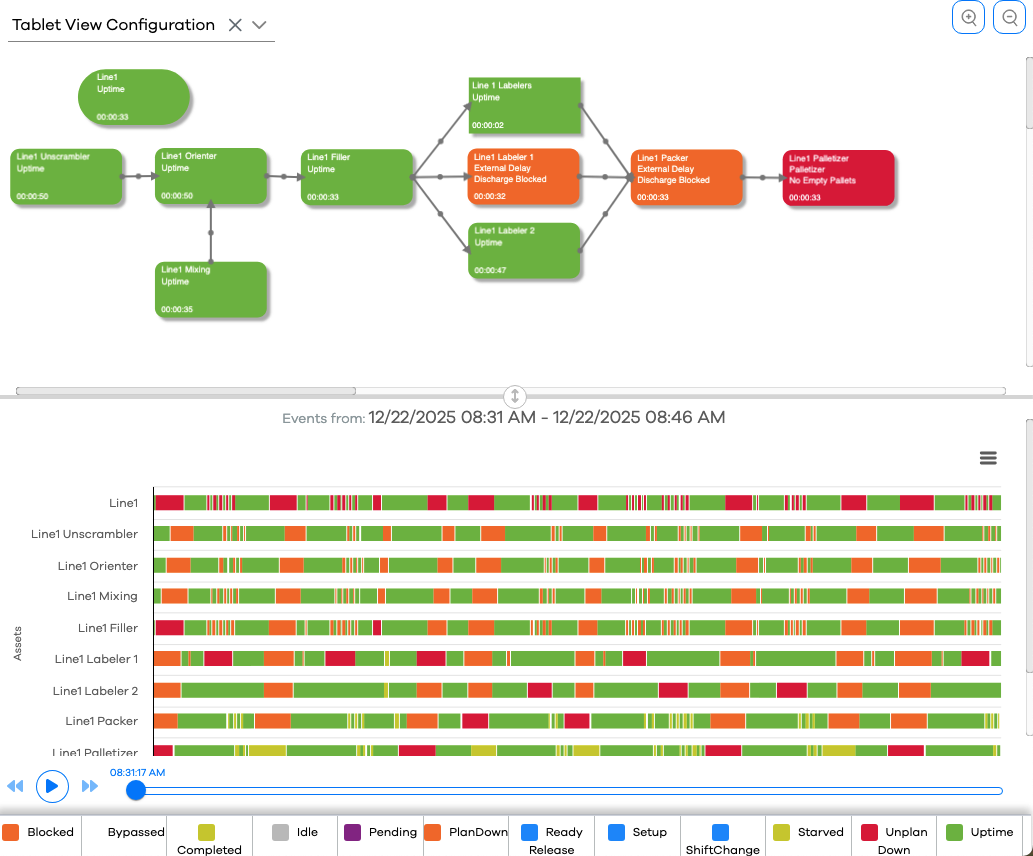
The ABLE™ replay view presents both the Layout View and the DNA View for a partiular period of time.
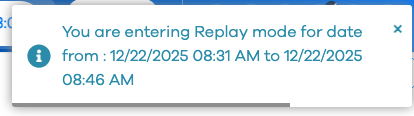
When entering Replay View, a toaster notification will appear summarizing the time filter currently applied, in case one navigates to it from a non-DNA or non-Layout view where they're already aware of the current time selection.
Reviewing events in Replay
At the bottom of the screen are playback controls, allowing a user to review the various asset state changes which occurred over the selected period of time.
Clicking the Play, Fast-Forward, or Rewind buttons will automatically advance the progress bar. One can also manually advance the progress bar by clicking and dragging the button thereon. The time is indicated above the button, as well as by the vertical bar in the DNA view.
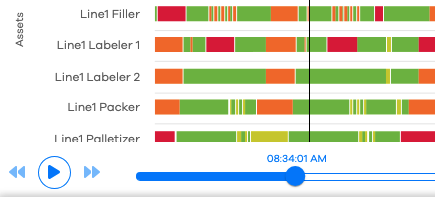
The asset state and event information at the currently-displayed time are reflected automatically in the Layout View at the top of the screen. This allows the user to step through the flow of downtime up and down the line in greater detail.
The horizontal divider between the upper and lower sections of the screen can be adjusted to provide more visibility of either section.
Sharing a Replay
After reviewing a series of events in Replay, the user may choose to share the timeframe with other users by emailing a link. Clicking this link in an email will automatically launch the Replay View to that same time selection.