Manage Configuration
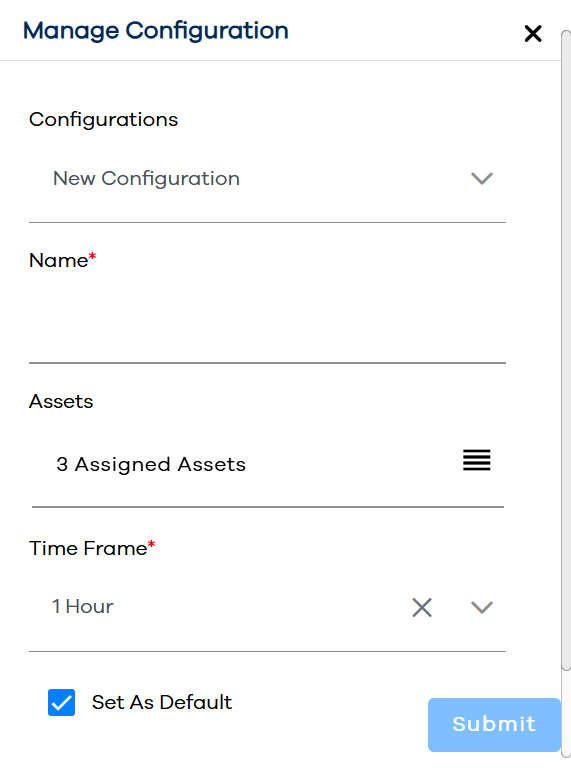
The DNA View uses configured displays where users can pick and choose which assets they would like to monitor. While in the DNA View, the double cog icon  in the upper right opens Manage Configuration. From here, users can create and edit the available displays.
Parameter | Description |
|---|---|
Configurations | This drop down box allows you to create a new configuration or edit an existing one |
Name | A short textual description of the configuration |
Assets | This determines the assets that are represented in the DNA View, and the order in which they appear. More information on using this dialogue can be found below. |
Timeframe | This determines the range of time shown in the DNA view. |
Set Default | When checked, this configuration will be shown by default whenever entering DNA view. |
DNA View Asset Selector
The assets displayed in DNA View can be configured by moving them into the assigned section from the available section.
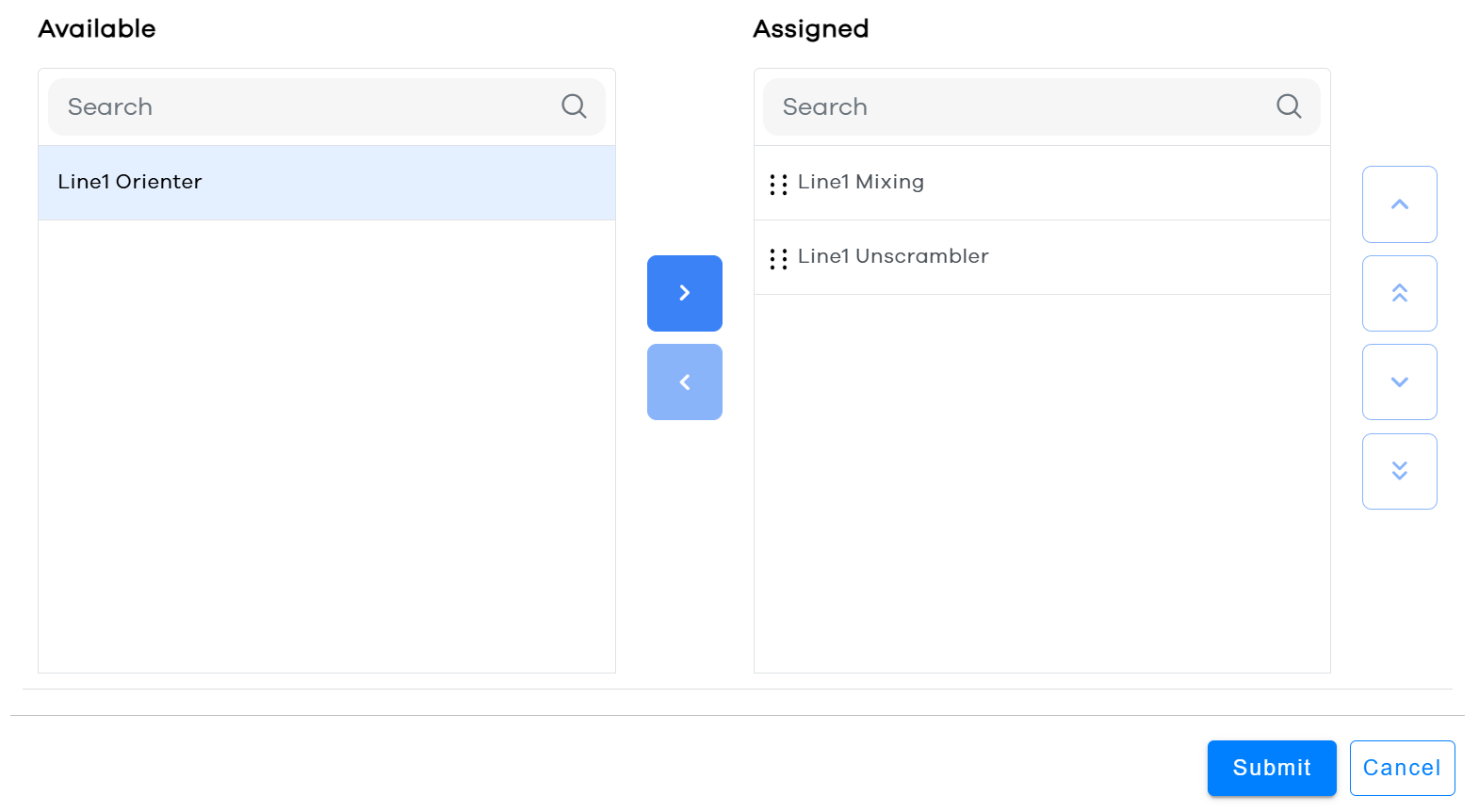
Available assets can be dragged over or selected and moved with the arrows to the assigned section. For long lists, the search bar can be used.
The assigned assets can be organized using the single and double up and down arrows. Double up/down will move the assets to the top/bottom of the list. Single up/down arrows will move the assets one space.
To save your changes, click Submit
Warning
After submitting changes to your asset selection, be sure to also submit your changes to the manage configuration.