Event Retagging
By clicking the button in the Operator View, a user can change the state and reason of one or more events which may have been inaccurately tagged in realtime.
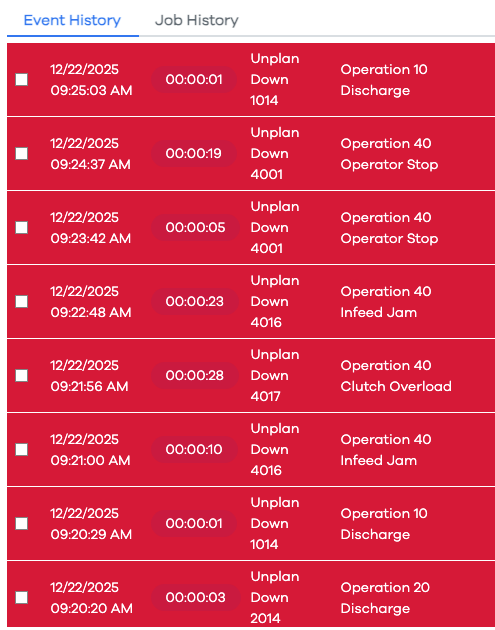
When the button is clicked, the "Event History" section of the page will be filtered to display only downtime events (re-tagging Uptime events to downtime, and vice versa, is not supported for several reasons). After one or more events have been selected, the user clicks the button, and will be presented with options to change either the state, or reason, or both.

Once the user has selected the desired new state and reason, they click the button to apply the changes. At this point, they could also out of the retagging operation without changing anything.
Once saved, the new event state and reason will immediately be reflected in the Event History with the appropriate color.
Warning
If events are collected during the retagging operation, the Event History list will be advanced. It's important to realize the retagged events may be below the viewable event history, and the user will need to scroll down in the list to observe their changes.