Operator View
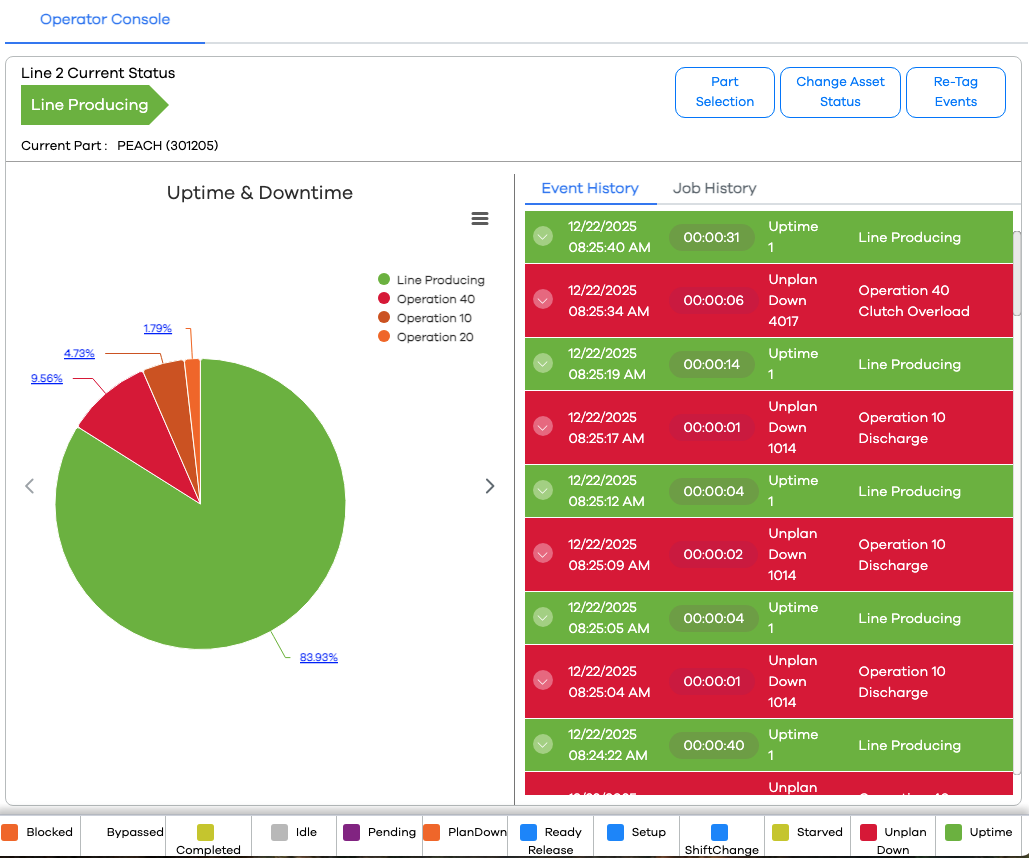
The Operator view in ABLE™ isolates the activity of a single asset, and is typically used at a workstation on the shop floor by an operator responsible for it.
It is comprised of elements from both the Asset Detail Metrics view and the Asset Detail Data view, with some additions:
Operator View Element | Description |
|---|---|
Information about the currently-selected part | |
Information about the currently-running Job, centering largely around Part Context | |
Information about the shift in which the operator is currently working, for data summary purposes | |
A button used by an operator to manually select the currently-running part, typically used at the start of a changeover | |
A button used by an operator to manually specify the current condition of the asset. For example, an operator might specify a break or lunch period, a period of no demand on the line, and other conditions of which the PLC would not be aware. | |
A Re-Tag Events button used by an operator or supervisor to change the downtime reason or state of one or more events. Typically this is used to re-tag a series of downtime events that were actually in a non-production state outside of the PLC's awareness. | |
A reverse-chronological list of jobs run on the asset |
Navigating to an Operator View
After clicking the "Operator View" of the left-hand navbigation bar in the runtime app, the user will be presented with a list of all the areas and assets for the plant. Clicking the icon in the Action column of the grid will navigate the user to the selected asset.
