ABLE Edge Management Service
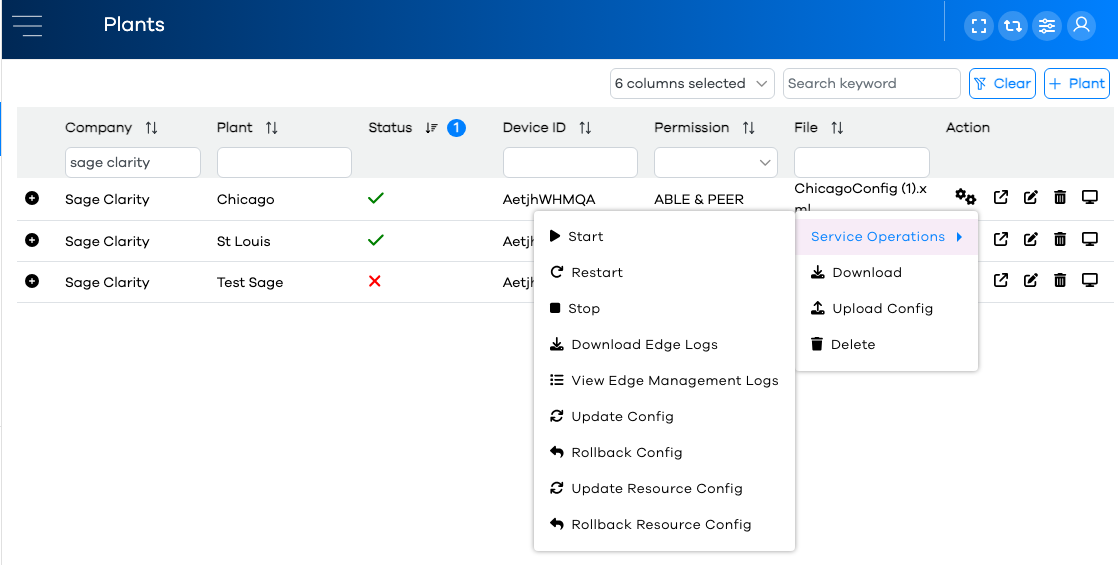
This service provides features to maintain the ABLE™ Edge Service without requiring login to the server on which the Edge Service resides. It runs alongside the Edge Service on the same server, under the name "SageEdgeManagement" in the Windows Services console.
From the Configuration app, find your plant in the Configuration Grid. In the Actions column on the far right of the grid, click the  icon, then on the menu.
Important
If the options in this menu are grayed out, the SageEdgeManagement service will need to be restarted on the edge server
The following commands will be exposed:
Note
The Edge Service referenced below can be found in the server's Services console under the name of "IDCServer"
Command | Description |
|---|---|
Start | If the Edge Service is not running, this command will start it. If it is already running, this command will have no effect. |
Restart | This command will stop the Edge Service, then start it again once successfully stopped. NoteIf your Layout View shows purple asset tiles for longer than a normal restart, or if you the tiles are not changing state for ALL ASSETS when they should be, restarting the Edge Service will force a reconnection to the OPC Server and often overcome these issues. |
Stop | This command will stop the Edge Service completely. This command is rarely used, but is included here for consistency with the Services console on the server itself. |
Download Edge Logs | This link downloads the Edge Service log entries resulting from the most recently-executed command (Start, Restart, Stop, and Update Config). This can often be useful when troubleshooting issues preventing the Edge Service from starting cleanly. |
View Edge Management Logs | This link exposes Edge Management log entries resulting from the most recently-executed command (Start, Restart, Stop, and Update Config). |
Update Config | After saving changes in the Configuration app that affect data collection, the Edge Service must be notified of the changes. The sequence of events that takes place when selecting this command are as follows:
NoteThis command also executes the "Update Resource Config" command (see below). |
Rollback Config | After updating a config, you may see undesired behavior based on your configuration changes. If correcting those issues is going to take time, and you want to revert to the previous working configuration, utilize this command.
NoteThis command also executes the "Rollback Resource Config" command (see below). |
Update Resource Config | Resource Files are addendums to the ABLE config xml defining the Edge Service configuration. They contain information regarding Faults (see Fault Learning), Controllers, Controller Programs, etc. A subset of these resource files need to be available to the Edge Service. Executing this command pushes those files from the cloud down to the Edge Server. |
Rollback Resource Config | When resource files are deleted from the cloud, and is executed, these deleted files are also deleted from the Edge Server (after being backed up there, locally). Executing the command moves those backup files back into the production folder on the Edge Server. |