Fault Rationalization
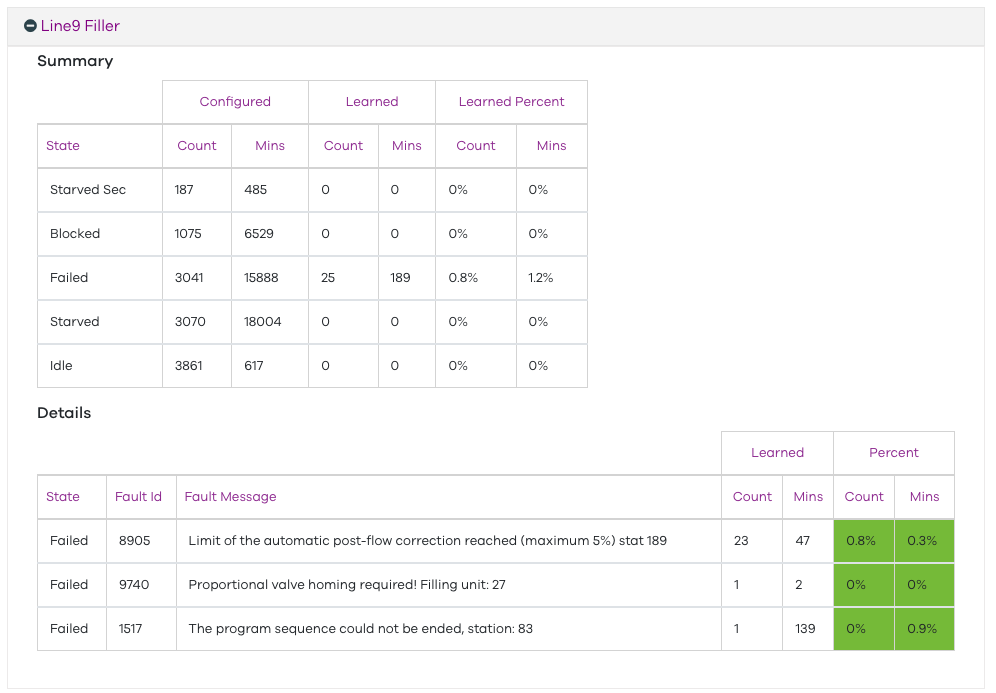
In the process of fault learning, certain faults will consume most of the asset's fail time. These statistically significant faults are identified in the Fault Learning Report. In order to rationalize these faults, and to give them more visibility rather than being bucketed into a single Fault Learning condition, these particular codes are transferred into their own unique conditions. When an asset is created from a template, multiple "future fault conditions" are scaffolded as placeholders, to ease this process.
Generate a Fault Learning Report, using the configuration app.
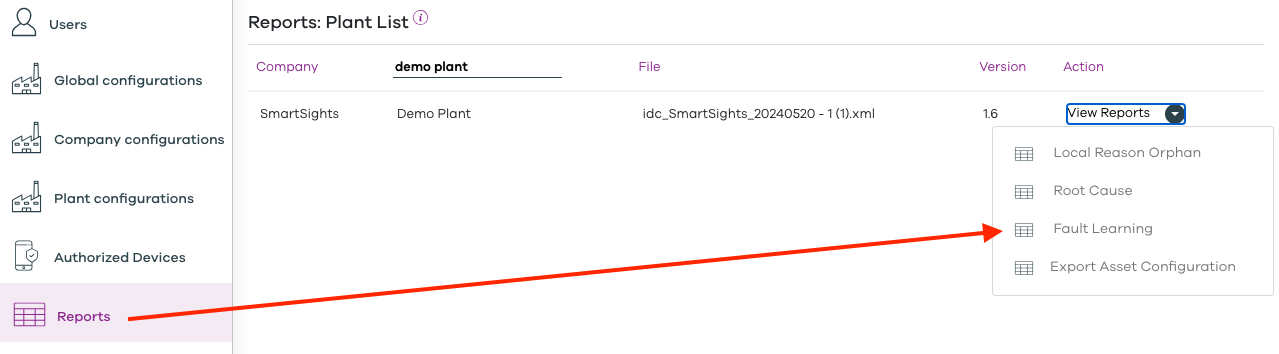
Set the to encompass the time range to evaluate for statistically significant faults (recommended at least one month of data)
Decide which faults are stasticially significant. In this example, fault 8905 occurred 23 times, which would qualify. Since fault 1517 consumed a large number of minutes, you might also consider it, even though it only occurred once. Typically, though, significance is based on the number of times an event occurred.
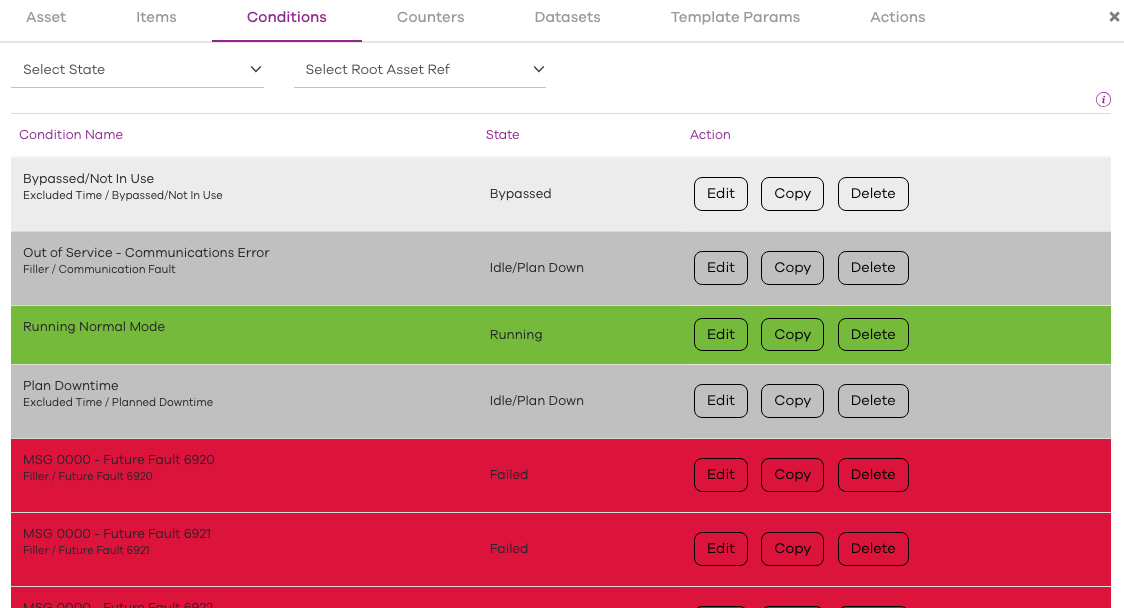
In configuration, edit the asset in question, and navigate to the tab. Find the first future fault available, and click the button to repurpose it.
There are several attributes of the condition which need to be changed, and some which are optional. Refer to the table below for more details on what needs to be changed, and how.
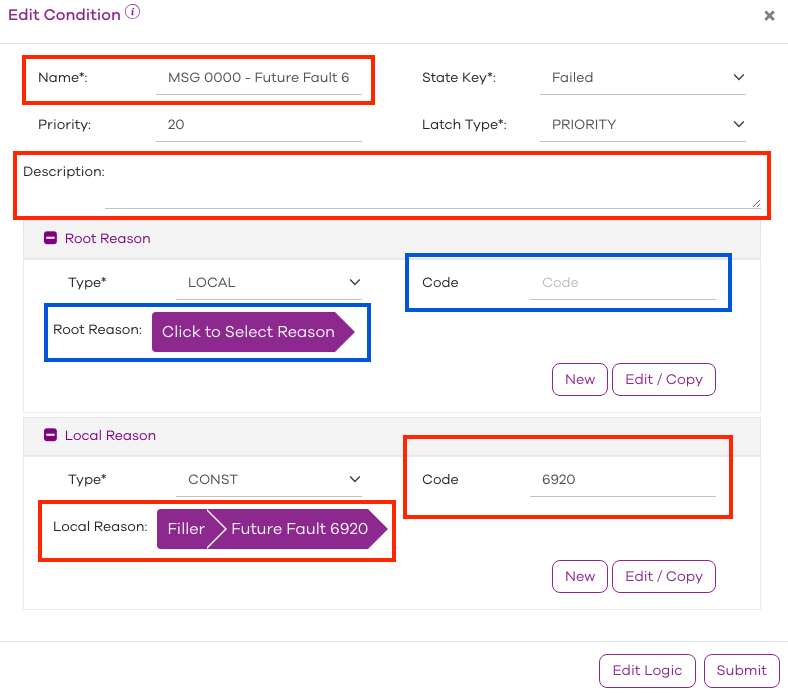 Table 14. Fault Rationalization Changes
Attribute
Description
Name
Change the name of the condition to represent the specific fault. In order to preserve the fact this condition was created using fault learning, we recommend leaving the leading "MSG 0000" text, and simply changing "0000" to the OPC code which should be caught. For example, from the above Fault Learning Report example, the new name could become "MSG 8905 - Post-Flow Correction Limit Exceeded".
Description (optional)
Faults are often represented by very long strings, sometimes complete sentences. One could paste the entire description of the fault here, for reference, so the actual name attribute can be shortened to something that doesn't clutter the screen.
Local Reason
This will currently be assigned to the Future Fault placeholder reason, with an arbitrary placeholder OPC Code
Root Reason (optional)
If this particular fault needs to roll up to its parent line with a different reason (i.e. if you want to bundle a group of faults into a single root cause reason), specify (or add) the root reason here.
Click the button for the Local Reason
Change the OPC Code to the correct fault code (in this example, "8905")
Change the Reason Level 2 reason name, representing the fault in 20 characters or fewer
Click the button.
Warning
Clicking is just the first step in committing your changes. Be sure to continue and finish the entire process.
Click the next button on the condition editor to save the new reason assignment and other attribute changes
Scroll to the bottom of the conditions list, and click the button.
Click the button to save the changes you made to the configuration.
Send the newly-saved changes to the Edge Service, so it can begin listening for the new code.